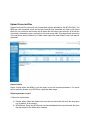
1
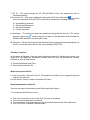
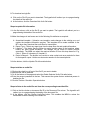
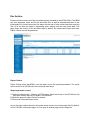
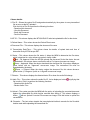
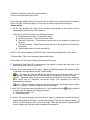
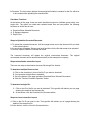
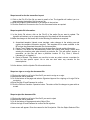
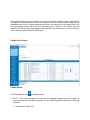
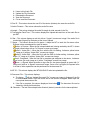
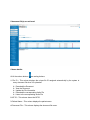
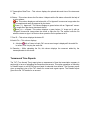
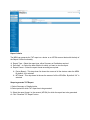
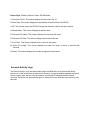
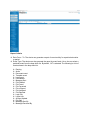
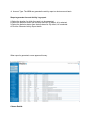
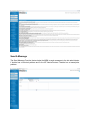
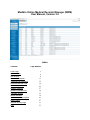
7. MT ID – This column shows the MT (MT/QA1/QA2) ID who was assigned the file for transcription/editing. 8. Document File – This column displays the document file ID and a blue button for the files which are completed. Click the file ID or blue button to perform the following functions: Download this document Review Audio/Document Email this Document Fax this Document 9. Attachment – The doctor can upload any attachment along with the audio file. This column displays a paper clip image to signify that there is a file attachment with the audio file. Download the attachment by clicking this image. 10. Remarks – The last column depicts the dictator's (doctor’s) remarks for the transcriptionist of the file. If the doctor rejects the file, this column displays REJECTED. Checkbox Functions At the bottom of the page, there are certain checkbox functions to facilitate group activity on a single click. The MRM can checkmark selected audio files and can perform the following functions on all of the files at once: Download Selected Audio Files Delete Selected Audio Files Steps to play an Audio File: 1. In the first column, click on the File ID. The hyperlink will redirect you to a page showing the details of the audio file. 2. At the bottom, click the “Listen to this audio file” button. Steps to download an audio file: There are two ways to download an audio file through Audio Archive: 1. To download multiple files at a time: Click on the check box in front of the file ID you want to download. You can select multiple files to download. Go to the bottom of the page and select the Download Selected Audio Files radio button. Click the Perform Checkbox Operation button.