1
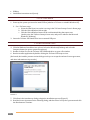
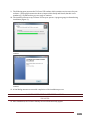
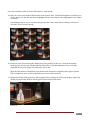
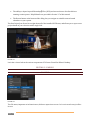
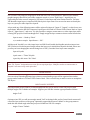
FIGURE 28
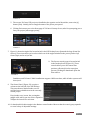
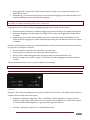
29. Accept the suggested name or supply a new one (such as “City
Loft Jax”, without the quotes) in the Save As dialog that
appears, and click Ok. A brief progress dialog will let you
know when saving is complete.
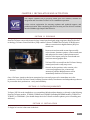
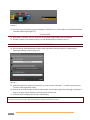
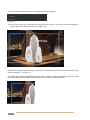
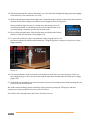
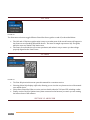
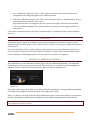
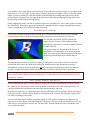
30. Now select Export to live > This TriCaster from the File menu.
The exported LiveSet will be listed in the LiveSet section of the
Live Desktop’s Media Browser afterward.
FIGURE 27
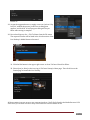
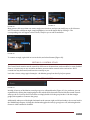
FIGURE 29
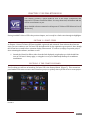
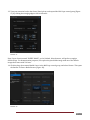
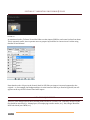
31. Click the Exit button in the upper right corner to close TriCaster Virtual Set Editor.
32. Select Open (or New) on the icon ring in TriCaster Startup’s Home page. Then click Live on the
Session page to launch the Live Desktop.
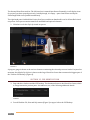
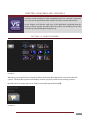
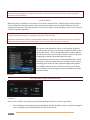
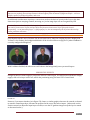
FIGURE 30
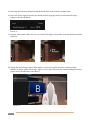
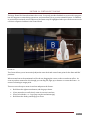
All that remains is to test out your new custom virtual set. You’ll find it listed in the Media Browser’s File
Pane when you click the new User entry listed under the LiveSets header at left.
Page | 19