1
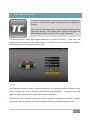
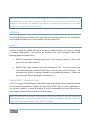
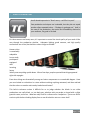
Figure 80
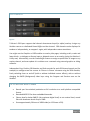
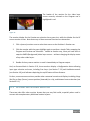
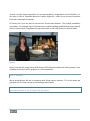
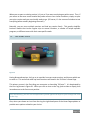
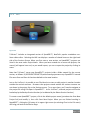
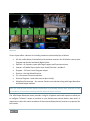
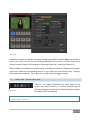
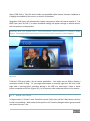
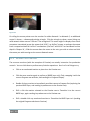
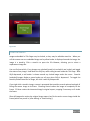
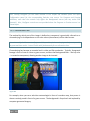
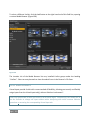
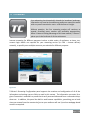
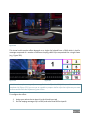
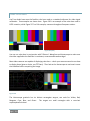
As its name implies, A over B simply produces a composite of the video source you select as Input
A displayed on top of Input B. In cases where LiveMatte is active for Input A, or if Input A has an
alpha channel (as might be the case, for example, for a 32bit image file), or for that matter, if
Input A is scaled down or repositioned – Input B will automatically show through transparent
areas in the composition (we can see that result in Figure 79).
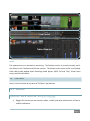
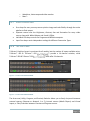
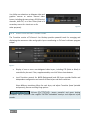
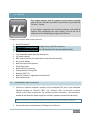
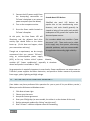
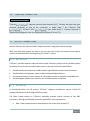
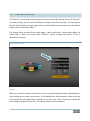
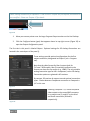
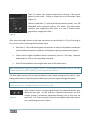
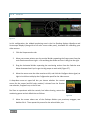
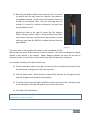
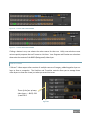
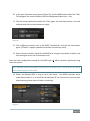
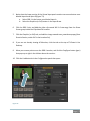
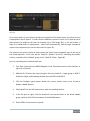
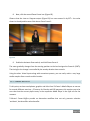
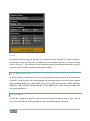
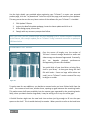
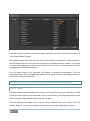
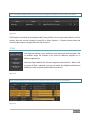
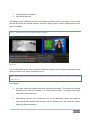
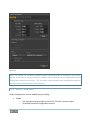
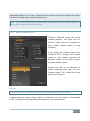
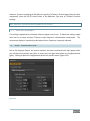
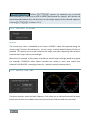
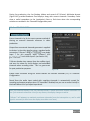
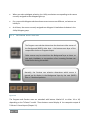
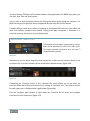
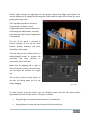
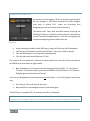
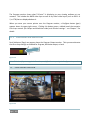
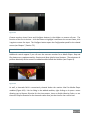
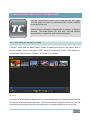
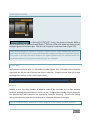
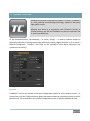
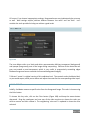
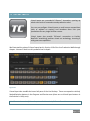
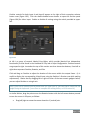
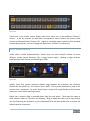
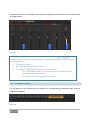
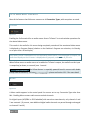
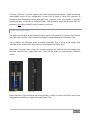
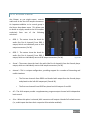
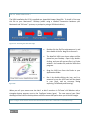
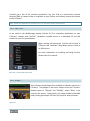
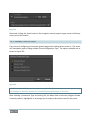
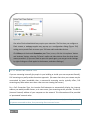
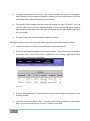
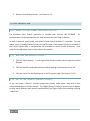
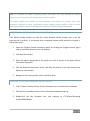
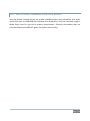
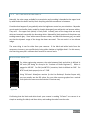
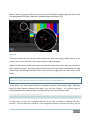
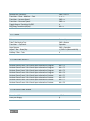
The name of the current LiveSet is shown above the Zoom Preset thumbnail icons at the top of
the Virtual Input tab – in this case, we see “NewTek > Default > A over B”, identifying the specific
LiveSet, a member of the “Default” group in the “NewTek” folder - Figure 80.
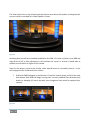
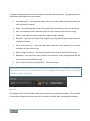
Let’s try something more sophisticated now:
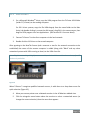
1.
Click Take (or de-select the BKGD delegate) in the Transitions section of the Switcher, to
place V1 on Preview.
2.
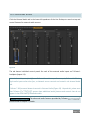
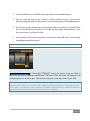
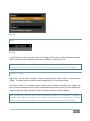
Add the file TriCaster Spin Logo (Long).avi from the NewTek > Logos group to DDR 2.
Enable the Single, and Autoplay switches for both DDR 1 and DDR 2.
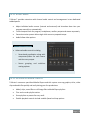
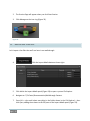
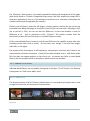
3.
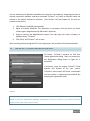
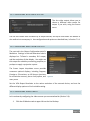
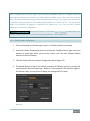
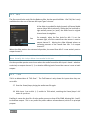
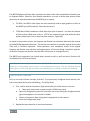
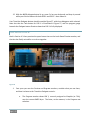
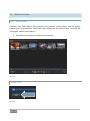
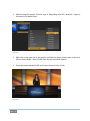
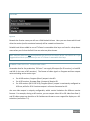
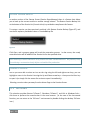
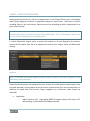
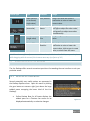
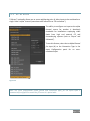
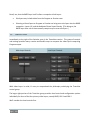
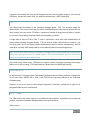
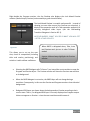
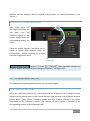
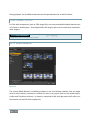
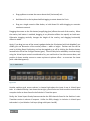
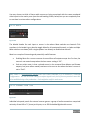
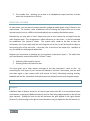
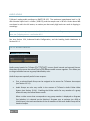
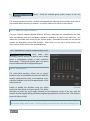
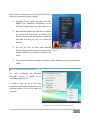
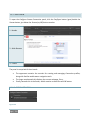
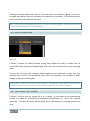
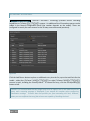
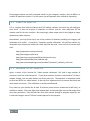
Click the Configure (gear) button beside the current LiveSet name in the V1 tab to
display a Media Browser.
4.
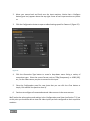
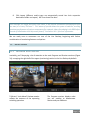
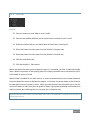
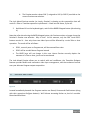
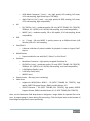
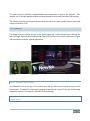
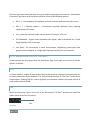
Select NewTek in the left-hand column under the heading LiveSets.
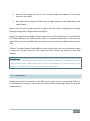
5.
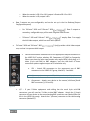
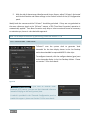
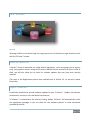
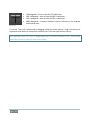
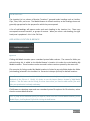
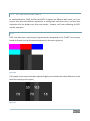
In the file pane at right, click the thumbnail icon named Center in the World Update
group, and then click OK at the bottom of the Media Browser.
6.
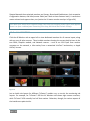
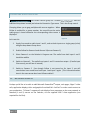
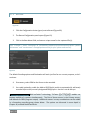
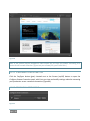
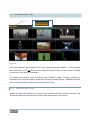
Select DDR 2 as the source for Input B.
Page | 83