1
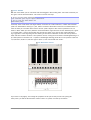
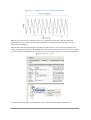
allow for fewer data-points per data-block. The slope these averaged ramps make over a single block is
fit during the data reduction (and are called "fit ramps"), and is a measure of the photocurrent in the
detector, which is in turn related to the infalling FIR flux. After this fitting there is only one data-point per
original data-block.
Hopefully this clears up some of the terminology that you will encounter below.
3 Working with PACS spectroscopy
The demo script you will have been provided with explains how to load the data provided for the workshop
into HIPE. Here we give an overview of how it works more generally for data you will get from the Herschel
Science Archive (HSA). Extracting your observation from the HSA is explained in the HowTo and we do not
repeat that here.
The data reduction for a chop-nod point source, one field (no raster), AOT is explained here.
3.1 First: find your observation
When you get your data from the HSA you will have tar file with fits files therein; untar them. To access
these data from HIPE you will need to register them as a pool/store within HIPE (i.e. tell HIPE where the
data are). By default HIPE will assume that the data are in a directory located below your .hcss/lstore
directory (e.g. in /home/jane/.hcss/lstore/mydata), this being a directory structure automatically created
when you first installed HIPE. It will be possible to set your "lstore" to be somewhere else on your disc, if
you don't want to store all your data off of /.hcss/lsore, however the details of doing this with the user
version (i.e. the one you are probably working with) are still a little hazy. So for now, put the data in the
default location, which in the example here is "/.hcss/lstore/mydata".
Now start HIPE and go to the Full Work/Work Bench perspective (the little green or blue clapperboard icon
at top right). In the Console panel you define your data pool with the command:
mystore = ProductStorage("mydata")
Now you need to pull out your actual observation from all the other files/directories that may be in mydata.
You can do this using the Data Access viewer, gotten via the HIPE Welcome window (Access Data→Access
Data Products) or from the HIPE menu bar (Window→Show View→Data Access). For the latter you will run a
"Query" for your observation (remembering to specify "mystore" as the pool to search); in most cases just
hitting the search button is enough. When the search has finished the results will go as QUERY_RESULT to
the Variables panel (it will also be in the Outline panel but ignore that). Close the Data Access viewer. Select
QUERY_RESULT in the Variables panel (double click) and it will appear in the Editor panel. Search through
the listing to locate the exact observation held within that which you want to work on; when selected this will
also appear in the Variables panel with a name similar to "prod_2" (meaning that your observation was the
3rd file listed there).
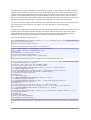
Note that usually when you run a command via a click-selection the command is echoed in the Console. In
this case you will see
prod_2 = QUERY_RESULT[2].product
The advantage of this is that you now know the command syntax, and you can chose to run future
commands via the Console command line instead.
Tip Right click on a product in Variables/Editor gives you access to all viewers available for
that product, as well as "save" "delete" and other menu possibilities.
Note From now on, the various panels in HIPE will be referred to as e.g. "Variables", not "the
Variables panel". "Selecting" is always done with a double-click.
3.2 Next: extract the Level 0 product
/Users/kexter/WRK/PACS/PDRG/PDRG-Cookbook-HowTo/4DPWS.xml
page 2 of 14