1
One example analysis: Quantifying allophony using predictability of distribution (additionally
illustrates segment / feature selection):
i.
Using the steps in III-B above, download and open the “Example” corpus.
ii.
See details about how this corpus was constructed here:
http://corpustools.readthedocs.org/en/latest/examplecorpora.html#the-example-corpus
iii.
The pattern: In the example corpus, [e] and [o] are allophones of [i] and [u], respectively,
which occur only immediately before a nasal consonant.
iv.
To confirm or quantify this state of allophony, use the metric of predictability of
distribution (Hall 2009). For each pair of sounds, this returns a value that ranges from 0
to 1; 0 = no uncertainty, i.e., perfect complementary distribution; 1 = complete
uncertainty, i.e., perfect overlapping distribution.
v. “Analysis” / “Predictability of distribution”
vi.
We’re interested here in the relation between mid vowels on the one hand and high
vowels on the other, rather than just a single pair of segments. Hence, select “Add pair of
features” rather than “Add pair of segments.”5
vii.
The feature that distinguishes the mid vowels from the high vowels is [high]. Type in
‘high’ (no quotation marks) in the “Feature to make pairs” box. (Note that as you type,
the list of possible features that match your current typing appears.)
viii.
All pairs of sounds distinguished by that feature are listed. In this case, that covers the
sounds we are interested in and no others; one could also add filters to the pairs to
eliminate extra ones (e.g., [-low] if there had been low vowels in this set too).
ix.
Click “Add.” The chosen sets appear on the left.
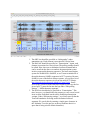
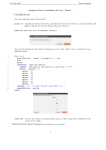
x. We now define environments. The central rectangle marks the “target” of the
environment and has an underscore at the top and a set of empty curly brackets, {},
beneath. On either side of the central target rectangle, there is a “+” button. These allow
you to add segments to either the left-hand or the right-hand side of the environment in an
iterative fashion, starting with segments closest to the target and working out. Clicking on
one of the “+” buttons adds an empty set {} to the left or right of the current environment.
To fill the left- or right-hand side, click on the rectangle containing the empty set {}. This
brings up the sound selection box.6 The environment can be filled by either clicking on
segments or specifying features. The relevant environments in this case might be
[_[+nas]], [_[-nas]], and [_#]. For this analysis, you want to ensure that your environment
selection is exhaustive and non-overlapping. For more information, click the “About
predictability of distribution...” button.
i.
Other options can be set if available. For example, the analysis could be done on some
tier of the corpus other than the whole transcription, if one has been created (e.g., a vowel
tier). The analysis could take into account pronunciation variants if the corpus encodes
them. And the analysis can be done using either type or token frequencies of occurrence.
Again, these options are detailed in the relevant Help files and in the original
documentation for this analysis technique.
5
This label is a misnomer. You’re adding a pair of sets of segments, defined featurally. We will
update the button label in the next version.
6
See http://corpustools.readthedocs.org/en/latest/sound_selection.html#sound-selection for
details on how to interact with these boxes.
10