1
Editor Programming Software User Manual
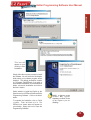
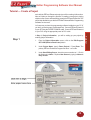
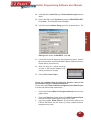
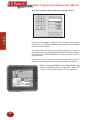
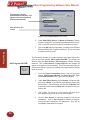
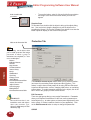
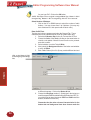
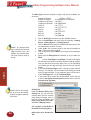
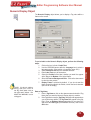
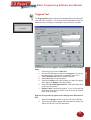
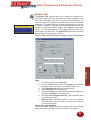
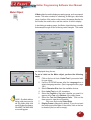
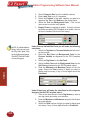
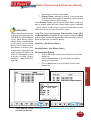
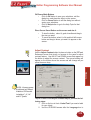
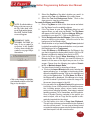
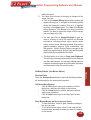
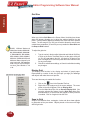
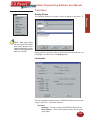
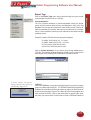
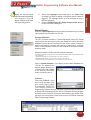
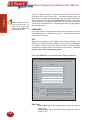
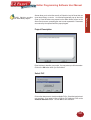
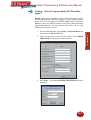
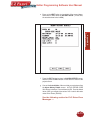
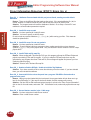
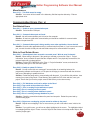
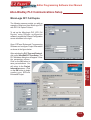
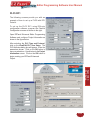
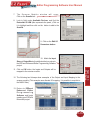
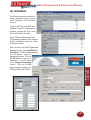
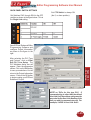
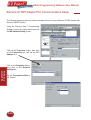
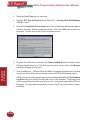
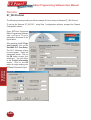
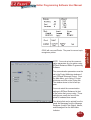
The message “Project
downloaded successfully” will
appear when the program has
finished downloading.
Click on OK to exit
screen.
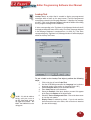
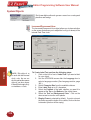
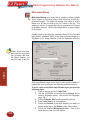
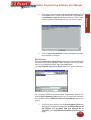
Project Setup
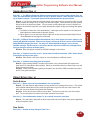
appears under Project Name in this screen.
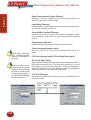
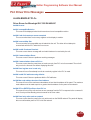
Edit Program ON-LINE
36
6.
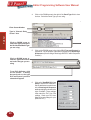
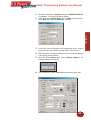
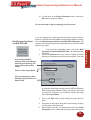
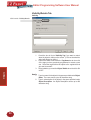
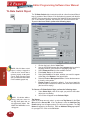
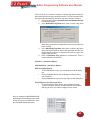
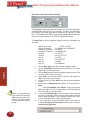
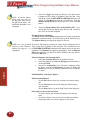
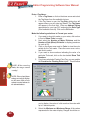
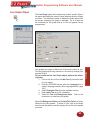
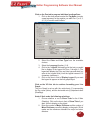
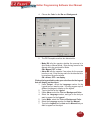
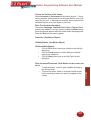
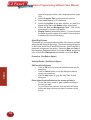
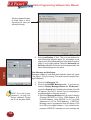
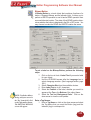
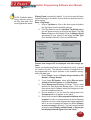
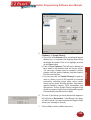
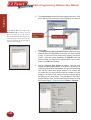
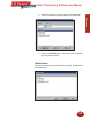
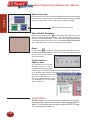
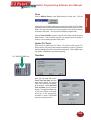
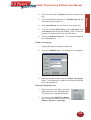
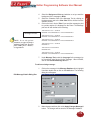
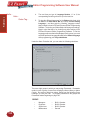
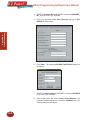
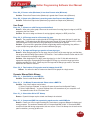
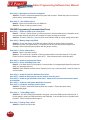
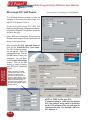
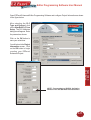
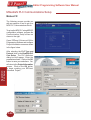
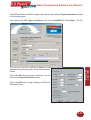
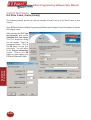
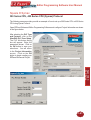
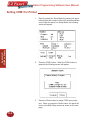
Under Start Editing Screen, the Name and Number of Screen
number 1 will appear. If you want to begin editing another screen,
click on the down arrow next to Name or Number and select.
7.
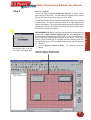
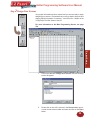
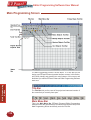
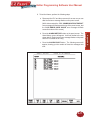
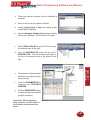
Click on the OK button to begin editing. You will go to the EZPanel
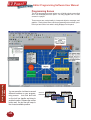
Enhanced Editor Main Programming Screen. You are now ready
to edit the selected screen.
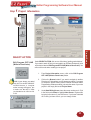
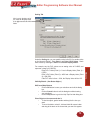
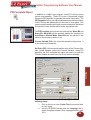
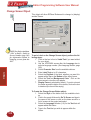
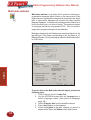
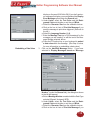
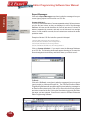
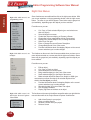
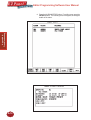
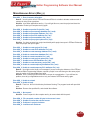
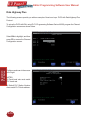
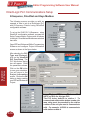
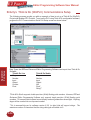
The third choice available is to make changes to the project while online.
Click on the button labeled, Edit Program ON-LINE. The changes are
effective each time Save Screen or Save Project is selected, reducing
downtime. Click on Save Screen or Save Project and the changes will
appear on the panel screen immediately. This is recommended when you
need to make changes quickly to an existing user program without shutting
down the system.
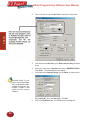
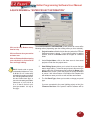
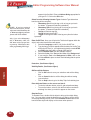
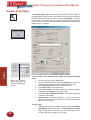
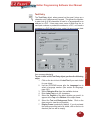
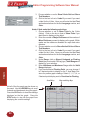
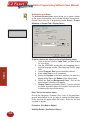
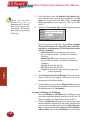
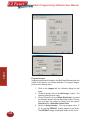
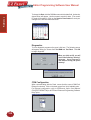
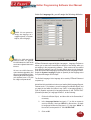
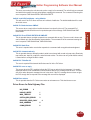
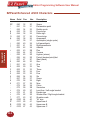
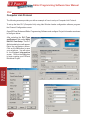
1.
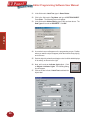
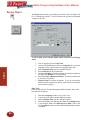
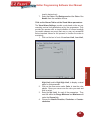
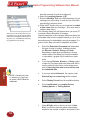
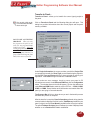
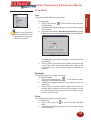
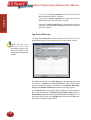
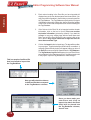
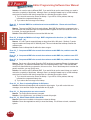
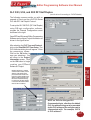
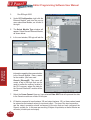
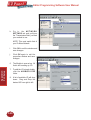
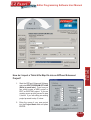
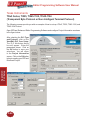
From the Project Information screen, click on the button
labeled, Edit Program ON-LINE. The Panel Type, PLC Type,
and Firmware Revision of the panel will soon display.
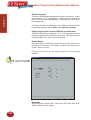
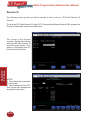
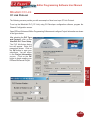
2.
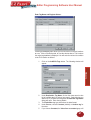
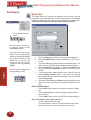
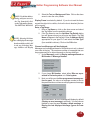
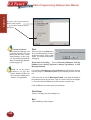
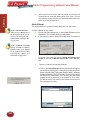
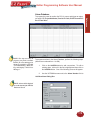
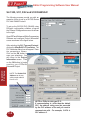
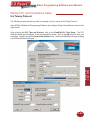
Under Start Editing Screen, screen Number 1 will appear with
that screen’s Name. If you want to begin editing a screen other
than Number 1, click on the down arrow next to the Number field
or the down arrow next to the Name field to select the screen you
want to edit.
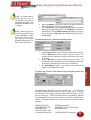
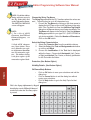
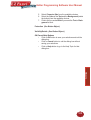
3.
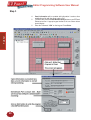
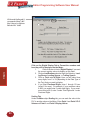
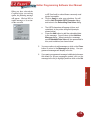
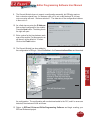
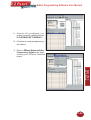
Click on OK. The screen you have selected will open on the
main programming screen for you to make changes.
4.
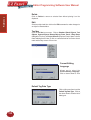
Click on Save Screen to download changes to the screen
immediately. Click on Save Project to transfer all changes,
including project attributes and databases. They will be
immediately downloaded to the panel.