1
Reference
Programming Software User Manual
4.
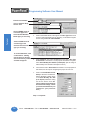
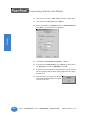
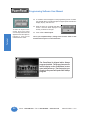
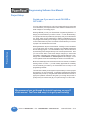
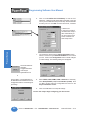
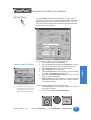
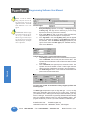
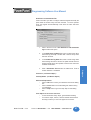
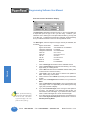
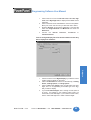
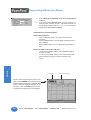
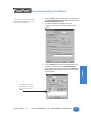
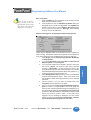
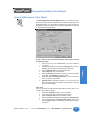
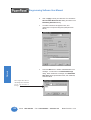
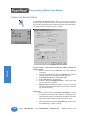
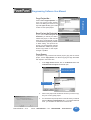
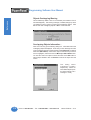
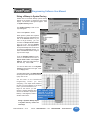
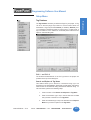
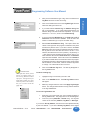
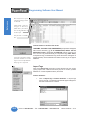
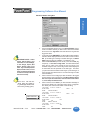
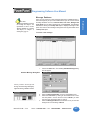
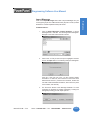
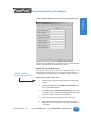
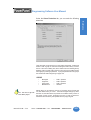
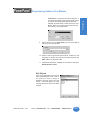
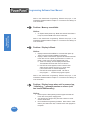
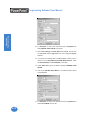
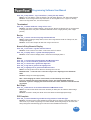
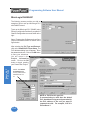
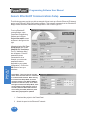
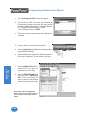
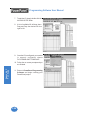
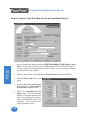
Click on Replace if you want to Replace the existing Message
No. 1 with Message No. 1 in the imported .csv file. Click on Do
not Replace if you want to keep the existing Message No. 1.
Click on Replace All if you want to overwrite/replace all
Messages, or Do Not Replace Any, if you want to stop importing
the messages.
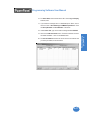
5.
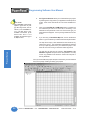
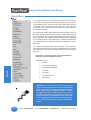
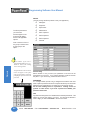
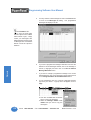
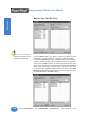
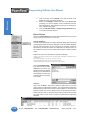
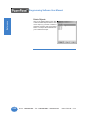
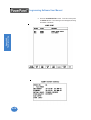
Open the Message Database to view the imported messages.
Excel Format...
212
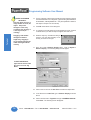
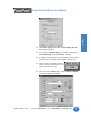
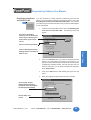
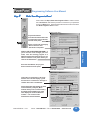
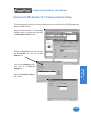
1.
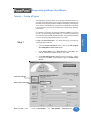
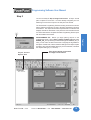
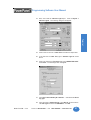
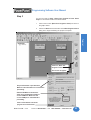
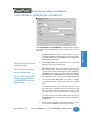
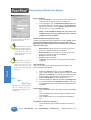
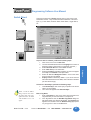
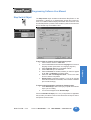
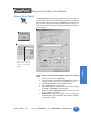
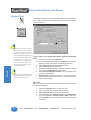
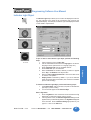
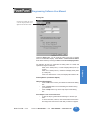
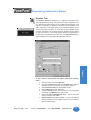
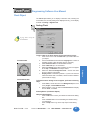
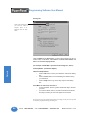
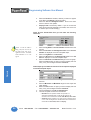
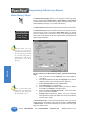
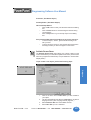
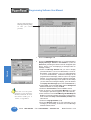
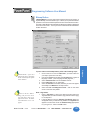
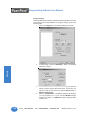
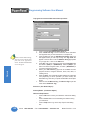
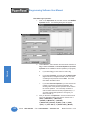
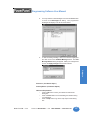
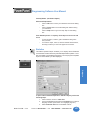
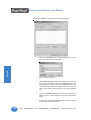
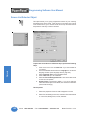
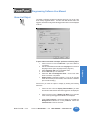
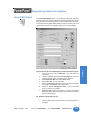
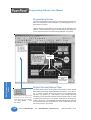
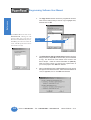
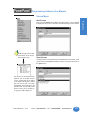
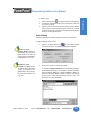
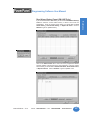
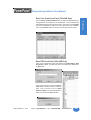
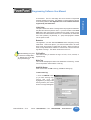
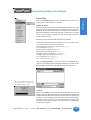
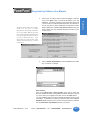
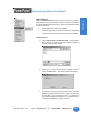
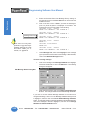
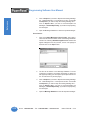
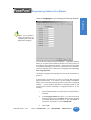
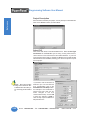
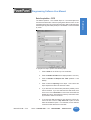
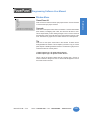
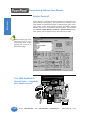
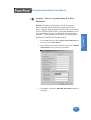
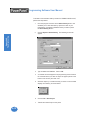
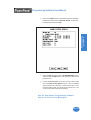
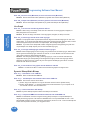
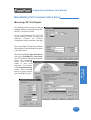
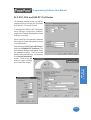
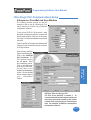
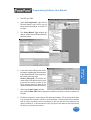
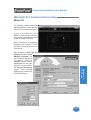
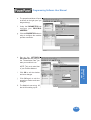
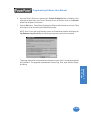
Click on the Import Messages> Excel Format...menu item to
select the Microsoft Excel® file where the Message database
resides. The following Read Message Excel File window will
appear. Navigate to the file you want, click on it to highlight it
and then click on the Open button.
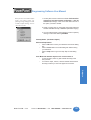
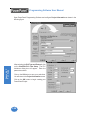
2.
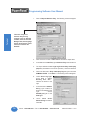
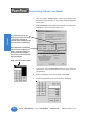
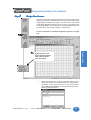
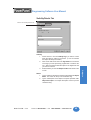
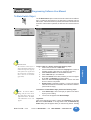
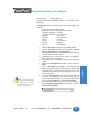
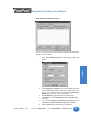
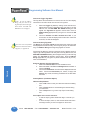
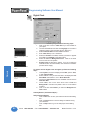
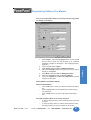
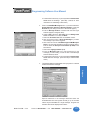
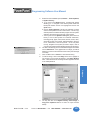
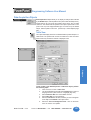
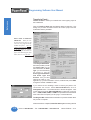
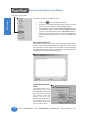
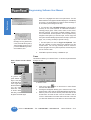
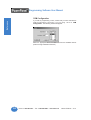
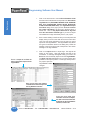
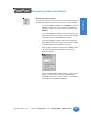
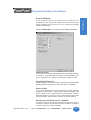
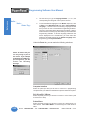
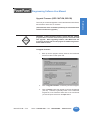
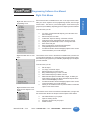
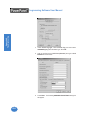
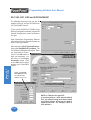
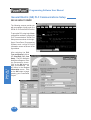
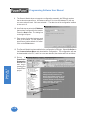
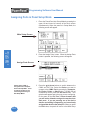
The file will be written to the Message Database. To avoid
overwriting or replacing an existing message(s), a dialog box
will appear providing you with import options (the same as for
the .csv file shown on previous page.)
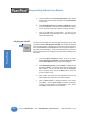
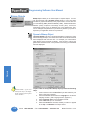
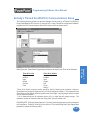
3.
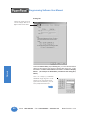
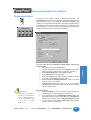
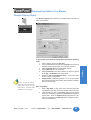
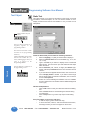
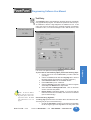
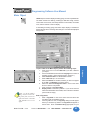
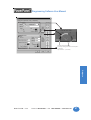
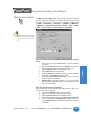
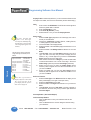
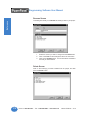
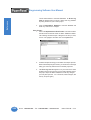
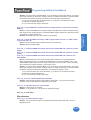
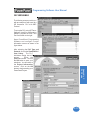
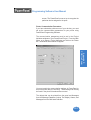
Click on Replace if you want to Replace the existing Message
No. 1 with Message No. 1 in the imported .xls file. Click on Do
not Replace if you want to keep the existing Message No. 1.
Click on Replace All if you want to overwrite/replace all
Messages, or Do Not Replace Any, if you want to stop importing
the messages.
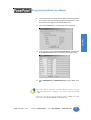
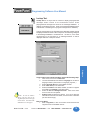
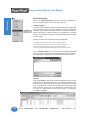
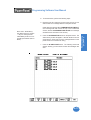
4.
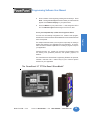
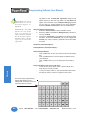
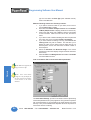
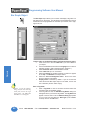
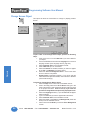
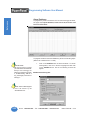
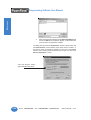
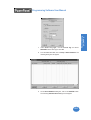
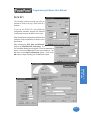
Open the Message Database to view the imported messages.
Phone: 1-563-359-7501 • Fax: 1-563-359-9094 • www.uticor.net
MAN-UTICW-M — V4.0