1
Virtualization
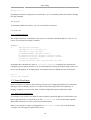
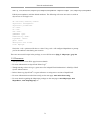
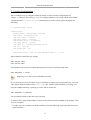
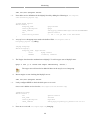
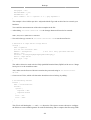
Note that as we are using virtual disk images, the actual sizes that we put here are maximum
sizes for these volumes.
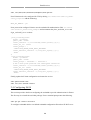
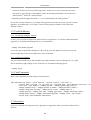
Our command line now looks like:
sudo vmbuilder kvm ubuntu --suite maverick --flavour virtual --arch i386 \
-o --libvirt qemu:///system --ip 192.168.0.100 --hostname myvm --part vmbuilder.partition
Using a "\" in a command will allow long command strings to wrap to the next line.
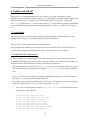
2.3.2.3. User and Password
Again setting up a virtual appliance, you will need to provide a default user and password that is
generic so that you can include it in your documentation. We will see later on in this tutorial how we
will provide some security by defining a script that will be run the first time a user actually logs in the
appliance, that will, among other things, ask him to change his password. In this example I will use
'user' as my user name, and 'default' as the password.
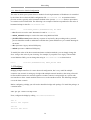
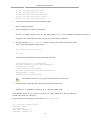
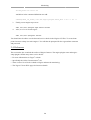
To do this we use the following optional parameters:
• --user USERNAME: Sets the name of the user to be added. Default: ubuntu.
• --name FULLNAME: Sets the full name of the user to be added. Default: Ubuntu.
• --pass PASSWORD: Sets the password for the user. Default: ubuntu.
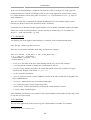
Our resulting command line becomes:
sudo vmbuilder kvm ubuntu --suite maverick --flavour virtual --arch i386 \
-o --libvirt qemu:///system --ip 192.168.0.100 --hostname myvm --part vmbuilder.partition \
--user user --name user --pass default
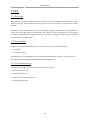
2.3.3. Installing Required Packages
In this example we will be installing a package (Limesurvey) that accesses a MySQL database and
has a web interface. We will therefore require our OS to provide us with:
• Apache
• PHP
• MySQL
• OpenSSH Server
• Limesurvey (as an example application that we have packaged)
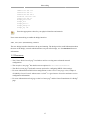
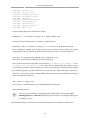
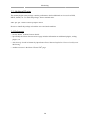
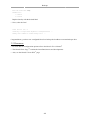
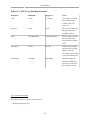
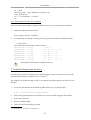
This is done using vmbuilder by specifying the --addpkg option multiple times:
--addpkg PKG
Install PKG into the guest (can be specfied multiple times)
266