1
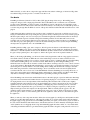
glance that the EQ was disabled via a quick glance at the very visible graph. It is more of a concern when one, but
not both, of the dynamics modules are disabled, and thus only part of the dynamics graph curve is valid.
Let's move on to the individual components within the plug-in.
EQ
The EQ module is flexible and powerful, much moreso than most channel strip
modules. In particular, you can configure up to 10 bands of EQ, and each band can
be any one of 7 types (bandpass, notch, highpass, lowpass, high shelf, low shelf, or
parametric), though obviously some of the types might not make sense in certain
positions.
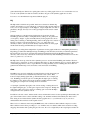
Only the settings for a single band are displayed at any given time, though
TrackPlug provides the ability to manipulate the key settings for any given band
(i.e frequency, "height" or gain, and width) directly via the graph. It also allows
adding, but not deleting or disabling/enabling, bands via the graph. Also, instead of
having to tediously toggle the band button to get to, say, band 10 if you're
currently on band 1, you can just click directly on the band 10 node on the graph
and the band 10 settings will immediately be brought to the fore.
In addition to providing direct manipulation of parameters via the graph, and knobs for manipulating the three key
EQ settings per band other than EQ band type, TrackPlug provides direct keyboard entry of numerical parameters.
Keyboard-based users can also tab back and forth between numerical fields in the TrackPlug interface, but,
curiously, cannot access any of the buttons via the keyboard. This may make TrackPlug a non-starter for users who
cannot, or prefer not to, use a mouse.
The EQ section shows up to the left of the dynamics processor sections in the TrackPlug user interface. However,
when it comes to signal flow, it can be configured either before or after the dynamics processor section. While users
of individual plug-ins have come to expect this kind of routing flexibility, it isn't something that can be taken for
granted in the channel strip world, and is thus a welcome feature of TrackPlug.
Gate
TrackPlug's gate section is technically an expander in that, besides the typical gate
controls (i.e. attack, release, and threshold), it includes a ratio control. Thus,
instead of simply turning signals that go under the threshold off, as a simple gate
does, TrackPlug provides the option of working like the simple gate or reducing
the signal by a ratio, which can create more natural sounding transitions when
using gating for a simple form of background noise reduction.
A "dyn input" (dynamics input gain) control allows raising or cutting the level of
the signal feeding the gate, or, if the gate is bypassed, the compressor. Perhaps the
main value of this control is for serving as a makeup gain or cut when the EQ is
configured before the dynamics section.
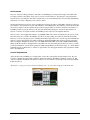
In addition to the ratio control, and the attack, release, and threshold controls for the expander/gate functionality, the
gate section features a knee control with three settings: soft, medium, and hard. Unfortunately, the effects of the
knee setting are not reflected in the dynamic module's graphic curve, so you will need to rely on your ears to
understand the effect achieved on the expansion curve.
There is also a lookahead control and a peak/RMS button, both of which are shared with the compressor section.
This lookahead control allows providing 0, 1, 2, or 5 milliseconds of lookahead, which can be useful for avoiding
chopping off transients when opening the gate. Of course, the cost is a slight delay in the output signal, but that can
Originally published on CakewalkNet.com, September 25, 2002.
Page 3