1
Configuring the application
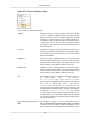
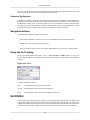
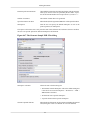
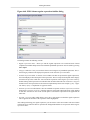
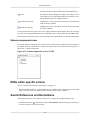
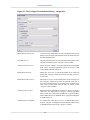
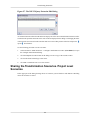
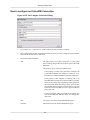
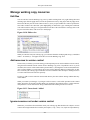
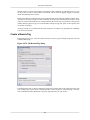
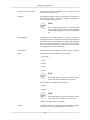
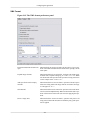
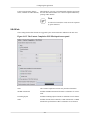
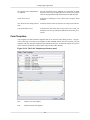
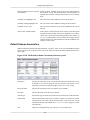
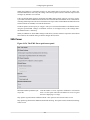
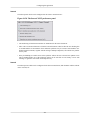
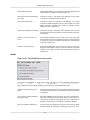
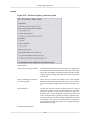
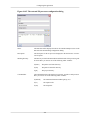
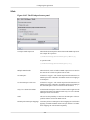
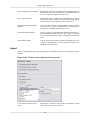
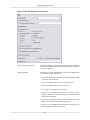
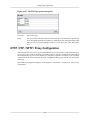
Automatic Version Checking
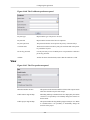
When enabled, checks the availability of new <oXygen/> versions
at http://www.oxygenxml.com. .
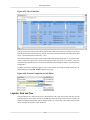
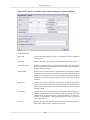
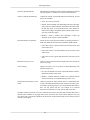
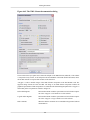
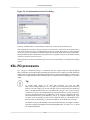
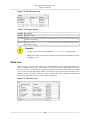
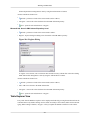
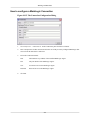
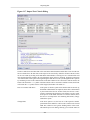
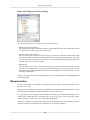
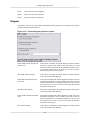
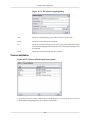
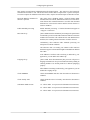
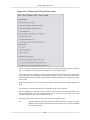
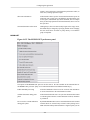
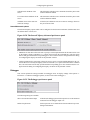
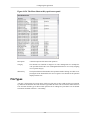
Language
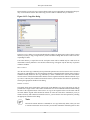
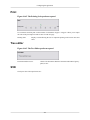
The application supports a number of languages for localization of
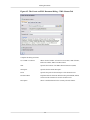
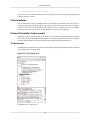
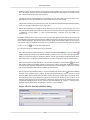
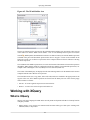
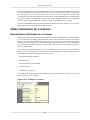
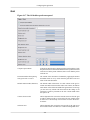
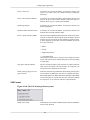
the GUI. Select Options → Preferences → Global+Language droplist to display the language choices.
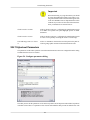
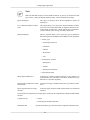
Note
After restarting the application, if some GUI labels
are not rendered correctly you will need to install the
corresponding language pack from your OS installation
kit.
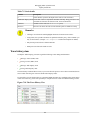
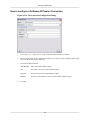
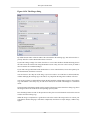
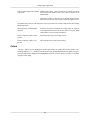
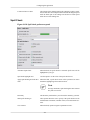
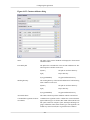
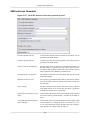
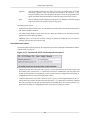
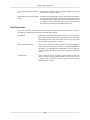
Other language
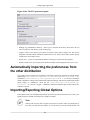
To change the user interface language of <oXygen/> you must set
here the properties file with all the user interface messages and labels
translated to your preferred language. For details about creating this
file see the section describing the creation process. After setting the
file you have to restart <oXygen/> in order to change the user interface language to your preferred language.
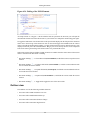
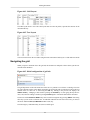
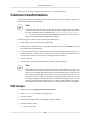
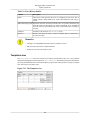
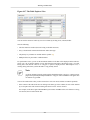
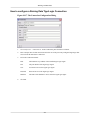
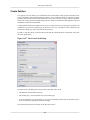
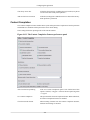
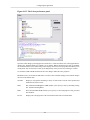
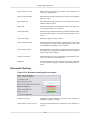
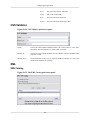
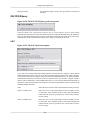
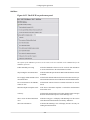
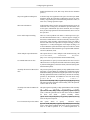
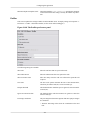
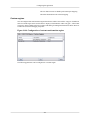
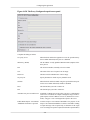
Look and Feel
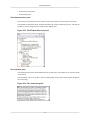
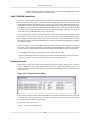
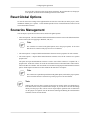
Use this option to change graphic style (look and feel) of the GUI.
Styles
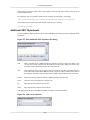
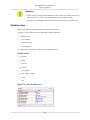
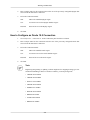
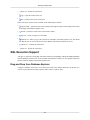
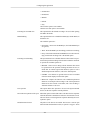
On Windows there are available the following styles:
• Office 2003
• Vsnet
• Eclipse
• Xerto
• Default
Note
After changing the style one has to restart the application in order for the modification to take effect.
On Linux there are available the following styles:
• Eclipse
• Default
Note
After changing the style one has to restart the application in order for the modification to take effect.
On Mac OS X this option is not available.
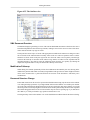
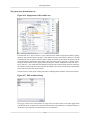
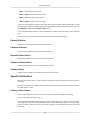
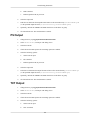
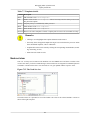
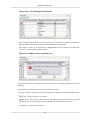
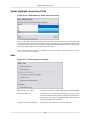
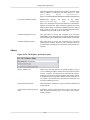
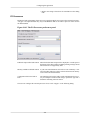
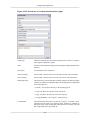
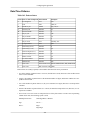
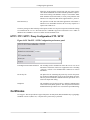
Themes
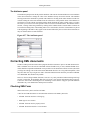
On Windows this option is enabled only if the Office 2003 or Default
styles. In these cases, the following themes are available:
318