1
03 fp ch03
8/27/04
10:33 AM
Page 49
The Simple Entry Tool
49
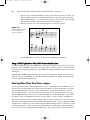
and then click the Dot Tool and the Tie Tool. You can now see all of these items on your cursor. Click in the
score and you will see a dotted eighth with a tie on whatever pitch you click on. To select any one tool
independently, just double-click it and all other Simple Entry Tools will deactivate.
Now, let’s say you have just entered a note, but it ended up on the wrong pitch. Notice the note just entered
is always highlighted in purple. This note is now selected (I’ll get into this more later on). Press the up and
down arrows to change its pitch. You can also click the note, hold down the mouse button, and drag the
note to the desired location. These techniques will come in handy anytime you misplace a note or want to
change the pitch right away. To deselect a note or rest, press the Esc or Backspace key on Windows or the
Clear key on Macintosh.
To enter a chord, simply click notes above or below an existing entry. You can stack up to 12 notes vertically
to create thick chords. You will be able to edit the pitches of each note in a chord independently.
Select the Eraser icon and click any note to delete it. Click the stem of a chord with the Eraser Tool to delete
the entire chord; click directly on a note head in a chord to remove a note from a chord. Press Ctrl/Cmd-Z to
undo the most recent edit.
Entering Rests
There are a few ways to enter rests into your score with Simple Entry. You may have already noticed rests
added to measures in your score. By default, Simple Entry automatically fills incomplete measures with rests
after clicking into a different measure or changing tools in the Main Tool Palette. To see this for yourself,
enter a quarter note into an empty measure. Then click a note into a different measure. The first measure fills
with rests. If you want to disable this feature and enter all rests manually, click the Simple menu, Choose
Simple Entry Options, and uncheck Fill With Rests. If you turn it off, you will still be able to go back and fill
measures with rests later on with the Mass Edit Fill with Rest feature (which I’ll cover later in Chapter 9).
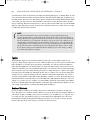
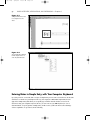
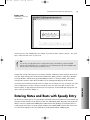
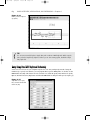
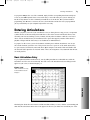
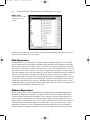
To enter rests manually, start by opening the Simple Entry Rests Palette (Figure 3.2) if you don’t see it on
your screen already. Click the Window menu and choose Simple Entry Rest Palette. Notice the appearance
of the new palette filled with rests of different durations.
Figure 3.2
Specify the rhythmic duration
of a rest for entry into the
score from the Simple Entry
Rest Palette
Accidentals
If you enter a note without specifying an accidental, Finale will always assume you want the note entered on
the diatonic pitch regardless of what key you are in. Any divergence from the key signature will need to be
CHAPTER 3
You can treat this palette the same as the Simple Entry Palette to enter rests. However, there is a better way.
Use keyboard shortcuts! To quickly choose a rest, simply hold down the Ctrl/Command key and press a
duration number on the numeric pad on your keyboard. Your cursor will change to a rest of that duration.
You can also press the R key to toggle between notes and rests of the same duration in your cursor. Click in
a measure to enter the rest or on existing notes to change them into rests of the duration you have chosen.
To change any note in your score to a rest of the same duration, Ctrl/Option-click it (it will change color)
and press the R key. I’ll provide a complete explanation of selection later.