1
SmartScore’s Notation Editor
Editing Lyrics and Text
!
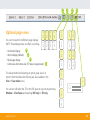
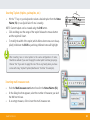
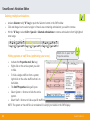
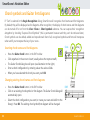
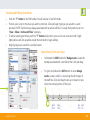
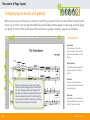
Text, titles, subtitles, composer name, copyright info, and lyrics are recognized by SmartScore as long as the “Text”
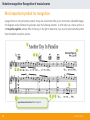
box is checked in the Begin Recognition Options section. Lyrics are treated differently than text. Lyrics are displayed
in blue and text in black. Lyric syllables are hard-linked to their associated notes and rests. Therefore, editing text
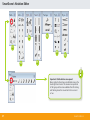
or lyrics calls for 2 different tools: the “L” button for lyrics and the “T” button for text.
Inserting and editing Lyrics
•
•
•
•
•
•
55
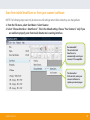
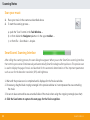
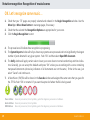
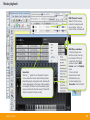
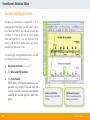
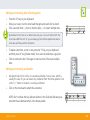
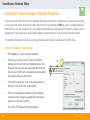
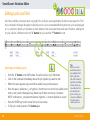
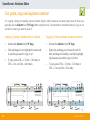
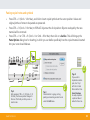
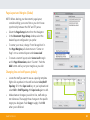
Push the “L” button in the ENF toolbar. You will now be in Lyric Edit mode.
Click on the notehead immediately above the lyric syllable you want to edit.
When the cursor appears, type and edit as would in any word processor.
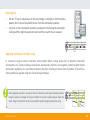
Press the space, underscore (_) or hyphen (-) button to move to the lyric syllable (next
note or rest). Use the Backspace key (Delete key for Mac) to remove a character.
NOTE: Underscores (_) represent melissmas. Hyphens (-) connect syllables in a word.
Press the ENTER key to start a new line lyrics (new verse).
To Exit Lyric mode, press the “L” button again.
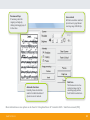
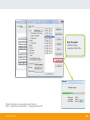
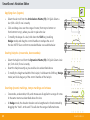
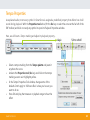
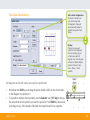
Tip:
With your cursor
positioned inside a
lyric syllable of text
block, right-click
(Alt-click for Mac) to
open the Text Styles
window. There you
can define the font
size and style for
lyrics. For text, you
can select a different
font style and/or
create a new one.
SMARTSCORE X2