1
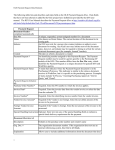
OLE Purchase Order Data Elements
required.
If the field is checked, a line item Receiving document must be
processed with sufficient quantities received before a payment will
route to the fiscal officer. After the PO is approved, this value
cannot be changed.
Contract Manager
Display-only. The name of the contract manager for this PO. If the
PO status is 'In Process,' 'Waiting for Vendor,' or 'Waiting on
Department,' the Contract Manager lookup
may be used to
change the contract manager.
Assigned to User
Allows a user to take ownership of an in-process document. Users
can then easily find documents they are working on.
Use Tax Indicator
Display-only if the 'ENABLE SALES TAX IND' parameter is set to
'Y;' otherwise, this field does not display at all. Indicates whether or
not sales or use tax applies to this PO.
Order Type
Identifies the type of order, possible values could be one-time,
standing, subscription. System default data value is "Firm, Fixed".
Funding Source
Display-only. The funding source for the PO; derived from the
requisition.
Payment Request Positive
Approval Required
Optional. The 'DEFAULT POS APPRVL LMT' parameter
determines the dollar limit at which payment requests must receive
positive approval from a fiscal officer. If selected, this field
overrides the parameter and requires positive approval on the
payment request regardless of the total of the payment.
Previous Purchase Order # Optional. Identifies the previous PO number associated with this
purchase order. This field is typically used to identify the converted
PO number from a legacy purchasing system.
Purchase Order Confirmed
Indicator
Optional. Select this box to indicate that this PO is being created
after the purchase has been made. This field may be used to track
instances in which users did not properly create a requisition
before making a purchase. In this case, the PO is being processed
only to enter the transaction into the KFS.
Requisition Source
Display-only. Indicates whether the requisition that created this PO
was input directly or created in some other way such as B2B.
Status Changes section
Waiting on Additional Info
Optional. If the PO is 'In Process' and additional information is
required, select the Vendor or Department radio button
(depending on whom additional information is needed from) and
then click the save button to change the PO status to 'Waiting for
Department' or 'Waiting for Vendor'. The system requires an
explanatory note to complete the status update.
The PO cannot be routed for approval until the status of the
PO is 'In Process'. Selecting the None radio button and the
save button updates the status of the PO to 'In Process'.
2