1
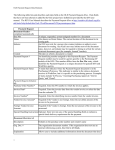
OLE Purchase Order Data Elements
Fiscal Year
Display-only. Identifies the fiscal year of the debit or credit.
Chart
Display-only. Identifies the chart to which the pending entry is
assigned.
Account
Display-only. Identifies the account number to which the pending
entry is assigned.
Sub-Account
Display-only. Identifies the sub-account, if one exists, to which the
pending entry is assigned.
Object
Display-only. Identifies the object code of the item being ordered.
Sub-Object
Display-only. Identifies the sub-object code of the item being
ordered, if one exists.
Project
Display-only. Identifies the project code, if one exists, to which the
PO is assigned.
Doc. Type Code
Display-only. Identifies the document type code of the document.
When working with POs, this value will almost always be PO.
Balance Type
Display-only. Identifies the different balances (actuals, budget,
encumbrances, etc.) recorded in KFS to facilitate reporting and
financial queries.
Obj. Type
Display-only. Categorizes object codes into general categories
identifying income, expenses, assets, liabilities, fund balance or
transfers.
Amount
Display-only. Indicates the amount charged to each account on the
PO.
D/C
Display-only. Indicates whether the entry is a debit (D) or credit (C)
to the account.
Notes and Attachments
Tab
Posted Timestamp
Author
Note Text
Attached File
Notification Recipient
Actions
Ad Hoc Recipients Tab
Person Requests section
Action Requested
Person
Actions
13
Display-only. The time and date when the attachment or note was
posted.
Display-only. The full name of the user who has added the notes
or attachments.
Required. Enter comments.
Optional. Select the file to attach by clicking Browse and using the
standard Choose File dialog box. Click Cancel to clear the file
name you have selected.
Click
to add a note.
Required. Select the desired action from the Action Requested
list. The choices are APPROVE, ACKNOWLEDGE, and FYI.
Required when routing the document to an individual. Enter a user
ID or select it from the lookup .
Click
to add an ad hoc request to a person.