1
Demo operation
When using flux box simply right click and click xterm to start a terminal application. Once this is
done, then you can type one of the three following commands (and hit enter afterwards) to start one of
the demos for the system.
demo-Cluny – A model fly-through of the Cluny cathedral
demo-StMaria – A model fly-through of the Santa Maria Church
demo-curia – A model fly-through of one room in a cathedral
Gamepad usage
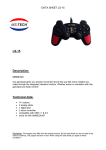
To control the visualization you are seeing on the Viswall system you must use the wireless gamepad.
It is designed to allow for full control of 3D scenes with a 2D display device.
First, stand in the middle of the Viswall system and orient yourself towards to looking at the area where
the two viswalls intersect. This is the origin of the navigation, and is where all of the controls listed
below are relative to.
There are four main control areas to pay attention to on the gamepad. They are the upper left joy pad ,
the bottom left control stick, the bottom right control stick, and the upper right set of buttons labeled
1,2,3,4.
The upper left joypad will make the visualization operate like a globe. It will turn left, right, up, and
down with the respective presses of the gamepad device.
The lower left control stick will allow for moving straight into the visualization, moving away from the
visualization, strafing left, and strafing right.
The lower right control stick will make you fly straight up or down in the visualization.
The upper right set of buttons provides three major operations. Pressing one will slow down the
navigation speed, pressing three will speed it up. Pressing buttons one and two together will reset the
navigation location to the initial location.
Custom application creation
The only supported software for the VisWall system at this time is DIVERSE. You will need to use the
correct DSOs to get the proper configuration and usage of this. If you aren't using the provided DSOs
and the system doesn't work for you, you will have to fix it yourself. Only the installed configuration is
supported.
Installed software information:
The current software installed on the system is:
Open Scene Graph 1.2 – In /usr/local
Latest version of OpenGL supported by the NVIDIA drivers
DGL – In /usr/local/diverse/dgl
DTK – In /usr/local/diverse/dtk
Developing your own applications
When developing your own application there is one major decision that needs to be made with regards
to DIVERSE development. Is this going to be a stand alone application, or is this going to be a DSO
that can work with any DIVERSE application.