1
-Modify any projector settings.
-Unplug any cables from the Viswall computer or projectors.
-Turn off the computer, it can be and often will be used remotely.
-Walk behind the screens. This is a sensitive area and you can easily cause thousands of dollars
of damage if you are not careful.
-Leave the projectors on if you are not using them. They have a limited lifespan, and replacing
bulbs is not in the budget in the foreseeable future.
-Leave fingerprints on the lenses of the glasses. Handle them by the frames only.
Turning on the projectors
Log into the VisWall system first.
Take the remote control from the desk where the console is, stand in the middle of the two viswall
screens, point the remote at a particular wall, and press the power button. You should hear one to two
beeps indicating that the projectors have been turned on. Return the remote to the desk where you got
it after this has happened.
It will take around a minute for an image to show up on the walls, so be patient.
Turning off the projectors
BEFORE logging out, take the remote from the desk, stand in the middle of the two walls, point the
remote at one of the two walls and press the power button. You should see a message asking for
confirmation to power down. Press the power button again and the projectors will turn off. Repeat for
the wall you did not point at.
If you log out before you turn of the projectors you may not be able to guarantee the projectors have
been turned off.
Window manager recommendation
Before logging into the Viswall system choose session types at the bottom left of the screen and select
Fluxbox for your session. This will prevent menu bars at the top and bottom of the two viswalls from
appearing.
You are welcome to figure out how to custom configure Gnome to hide the bars from displays :0.1 and
:0.2, and are encouraged to send the information on how to do this to Dr. Bowman for inclusion to this
document.
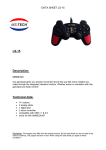
Gamepad operation
The gamepad needs to be turned on before it can be used to control applications on the Viswall system.
To turn on the gamepad, hold it with the buttons and joysticks facing the floor. Press the switch from
the left most position to the right most position. To turn off the gamepad, hold it so that the buttons and
joysticks are facing the floor and move the switch all the way from the right to the left.
If you leave the gamepad unused for a period of time, it may turn itself off. To turn it back on, turn the
gamepad off. Wait 5 seconds, then turn the gamepad back on.
Software usage on the Viswall System
This section is broken down into two different parts. One is how to use pre-existing demos on the
system, and the other part is how to develop applications on the system.