1
Frame3DD User Manual
8.
9.
10.
11.
12.
13.
14.
15.
http://frame3dd.svn.sourceforge.net/viewvc/frame3...
Numerical Details
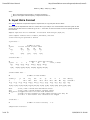
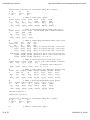
Input Data Format
Variable Definitions
Command-line options
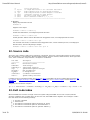
Source code
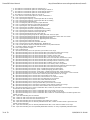
Exit code index
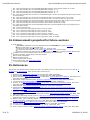
Enhancements projected for future versions
References
1. Getting started
1.
2.
3.
4.
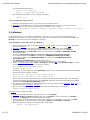
Read the User Manual and Reference (this file).
Download Frame3DD and save the Frame3DD folder to your Desktop (more details below).
Optionally, obtain a copy of Gnuplot for your operating system (more details below).
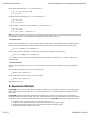
Open a terminal, go to the Frame3DD directory, and run the program on one of the examples using a command like
...
frame3dd examples/exE.3dd examples/exE.out
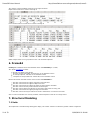
5. Open the Output Data file using a good text editor and view the Output Data.
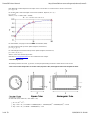
6. Plot the structural configuration, the deformed structural shape, and mode-shapes, by starting Gnuplot, and typing
gnuplot> cd 'Desktop/Frame3DD/examples'
gnuplot> load 'exE.plt'
Observe a series of plots by hitting the Return (or Enter) key between plots.
If a dynamic analysis was performed, you will enjoy an animation of selected mode shapes.
Continue to hit the Return (or Enter) key until the last plot is displayed.
2. Input Data and Output Data
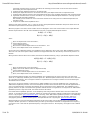
The Input Data file is a plain text file and must adhere to the format described below. Several examples are given at
http://frame3dd.sourceforge.net/. When writing your own input files, note the following points:
Comments may be placed anywhere in the file and are helpful in organizing the Input Data.
A comment begins with one of the following four characters # % ? ; and continues to the end of the line.
All commas in the Input Data are ignored.
Floating point numbers must be entered as 1.234 1234 or 1.234e3.
Arithmetic expressions such as 1.234*10^3 or 6*sin(pi/2) are not allowed in the Input Data (unless the Matlab
interface is used).
To write your own Input Data file, it may be helpful to start with an example that resembles the system you would like to
analyze. Carefully compare the graphical output of the example, the Input Data file, the Output Data file, and the Input
Data format, with the variable definitions at the end of this page.
You may edit Input Data files using a good plain text editor (vim, jEdit, nano, gedit (Linux), NotePad++ (Windows), etc.),
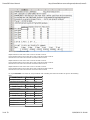
using the Matlab interface, or using spreadsheet programs (GoogleDocs, OpenOffice, Gnumeric, or Excel).
Details regarding the Matlab interface to Frame3DD are here.
Details regarding the spreadsheet interface to Frame3DD are here.
It might take a few tries to get your Input Data just right. Frame3DD checks the Input Data for errors prior to analyzing the
system and, where possible, displays descriptive diagnostic messages when errors are found with the Input Data.
Frame3DD generates several additional output files used in plotting deformed frames. By default, these output files
are sent to a temporary file folder. On OS X, Linux, and Unix, the location of this folder defaults to the /tmp directory. On
Windows, the location of this folder defaults to C:\WINDOWS\Temp. If you would like your output files to be sent to
another location, you can set the environment variable FRAME3DD_OUTDIR with the path to your desired temporary
output directory. The additional output files will then appear in the folder you have specified.
3. How to install and run Frame3DD
Compiled executable programs are updated with some regularity. Frame3DD installation packages are available for
download for Linux, for OS X, and for Windows operating systems as .ZIP archives. These installation .ZIP archives include:
2 of 33
11/09/2010 11:18 AM