1
This global refinement option is rarely used, as it tends to
create quite a large number of elements, which increases
solution time, and it is not often that a fine mesh over an
entire part or assembly is necessary for accurate results.
Global Mesh Refinement
Much more often, if mesh refinement is necessary, local
mesh refinement is the option that will produce the best
combination of solution speed and accuracy.
For local mesh refinement, like global mesh refinement, we
increase the mesh density, i.e. reduce the element size, by
either requiring a minimum number of elements along model
edges, or by specifying a maximum element size for selected
model geometry. These methods can be used either
individually or in combination:
-
Curved edges (minimum number of elements)
Linear edges (minimum number of elements)
Selected geometry (maximum element size)
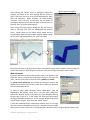
Curved edges: the user can specify the minimum number of elements to be generated along all curved
edges of the model, thereby increasing the mesh density along those
edges. The system default is 2. In this example, in the “Bounds” section
of the part mesh dialog, we entered ‘6’ in the “curve elements” field,
forcing all curved edges to have at least 6 elements along their length.
Default
curve elements = 6
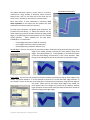
Linear edges: the user can also specify the minimum number of elements to span all linear edges of the
model. The system default is 2. In this example we entered ‘5’ into the data field “edge elements” in
the “Bounds” section of the part mesh dialog box to increase the mesh density along all linear edges of
the model. Notice that for the longer linear edges of the model, the
mesh density does not change very much from the default, because
larger elements can be used to satisfy the required minimum number of
elements along these longer edges.
Default
Copyright © 2014 FEMdesigner Ltd. All Rights Reserved
edge elements = 5