1
•
•
•
•
Oxygen XML Editor | Configuring Oxygen XML Editor | 1237
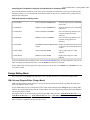
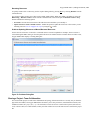
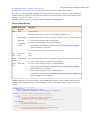
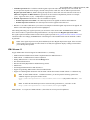
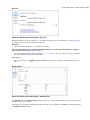
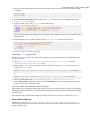
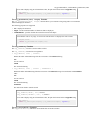
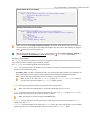
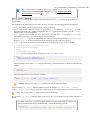
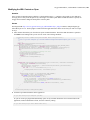
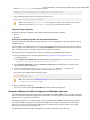
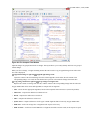
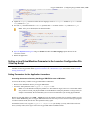
Windows (Vista, 7, 8, 10) - [user_home_directory]\AppData\Roaming\com.oxygenxml
Windows XP - [user_home_directory]\Application Data\com.oxygenxml
Mac OS X - [user_home_directory]/Library/Preferences/com.oxygenxml
Linux/Unix - [user_home_directory]/.com.oxygenxml
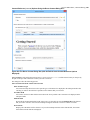
Project Options
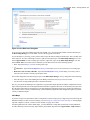
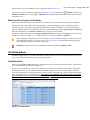
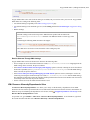
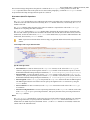
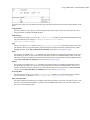
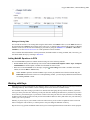
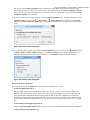
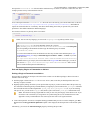
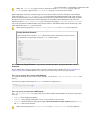
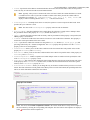
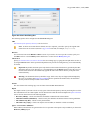
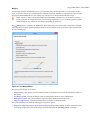
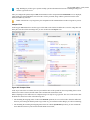
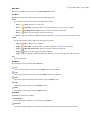
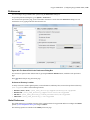
If you select Project Options, the preferences are stored in the project file and can be shared with other users. For
instance, if your project file is saved on a version control system (such as SVN, CVS, or Source Safe) or in a shared
folder, your team will have the same option configuration that you stored in the project file.
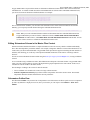
Notice: Some pages do not have the Project Options switch, since the options they host might contain sensitive
data (passwords, for example), unsuitable for sharing with other users.
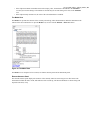
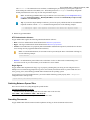
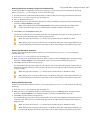
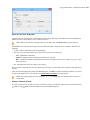
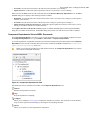
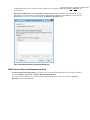
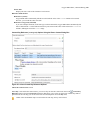
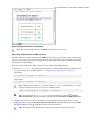
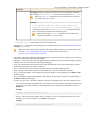
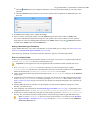
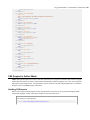
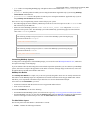
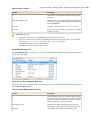
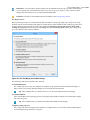
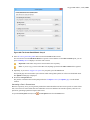
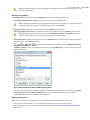
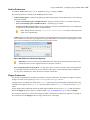
Note: If changes have been made to the options in a preferences page and you switch between Project Options
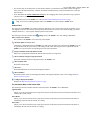
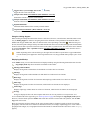
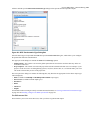
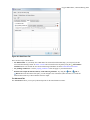
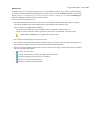
and Global Options, a dialog box will be displayed that allows you to select one of the following:
•
•
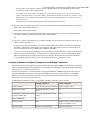
Overwrite - The existing options from the current preferences page will be overwritten.
Preserve - The existing options from the current preferences page will be preserved.
For more information about sharing project files, see the Sharing a Project - Team Collaboration on page 164 section.
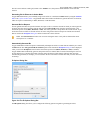
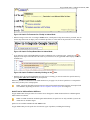
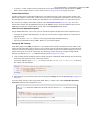
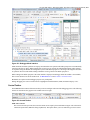
Importing / Exporting Global Options
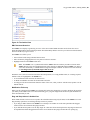
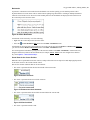
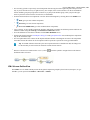
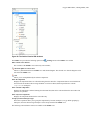
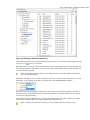
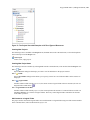
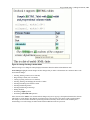
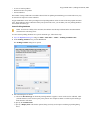
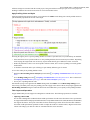
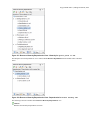
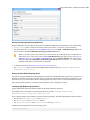
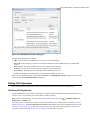
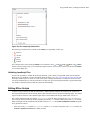
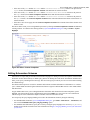
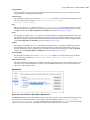
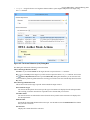
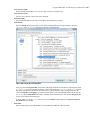
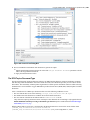
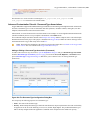
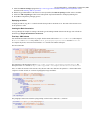
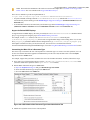
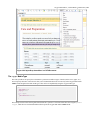
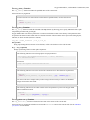
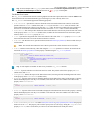
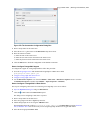
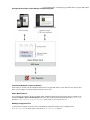
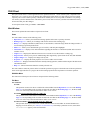
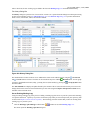
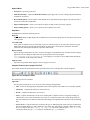
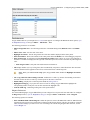
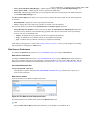
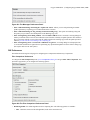
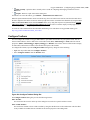
Actions for importing, exporting, and resetting global options are available in the Options menu. The export operation
allow you to save global preferences as an XML options file and the import operation allows you to load the options
file. You can use this file to reload saved options on your computer or to share with others.
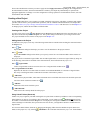
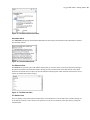
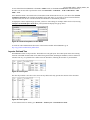
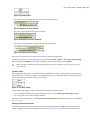
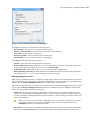
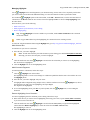
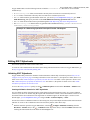
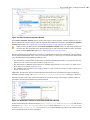
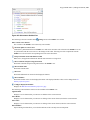
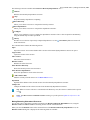
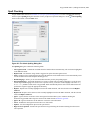
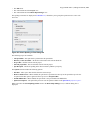
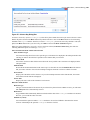
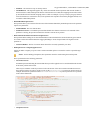
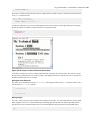
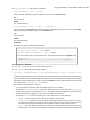
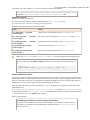
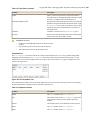
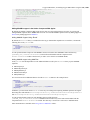
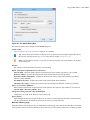
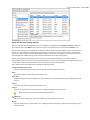
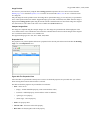
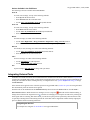
The following actions are available in the Options menu:
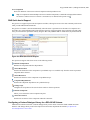
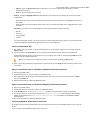
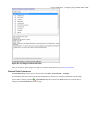
Reset Global Options
Restores the preference to the factory defaults or to customized defaults.
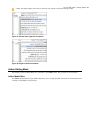
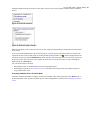
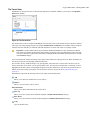
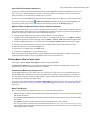
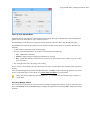
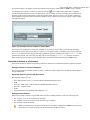
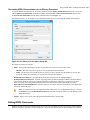
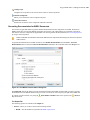
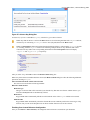
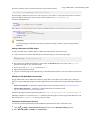
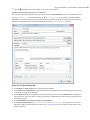
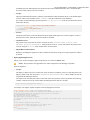
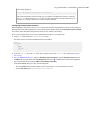
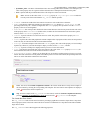
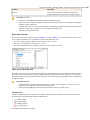
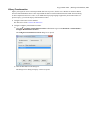
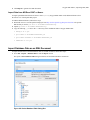
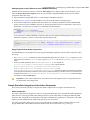
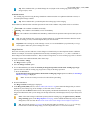
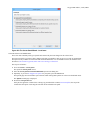
Import Global Options
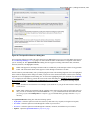
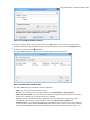
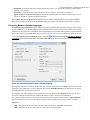
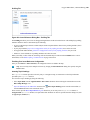
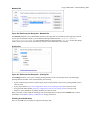
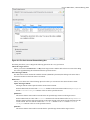
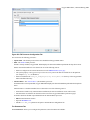
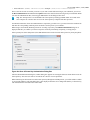
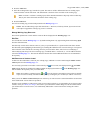
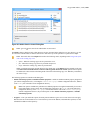
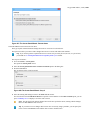
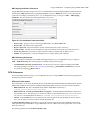
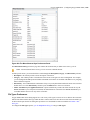
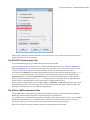
Allows you to import a set of Global Options from an exported XML options file. You can also select a project-level
options file (.xpr) to import all the Global Options that are set in that project file. After you select a file, the Import
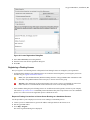
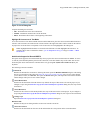
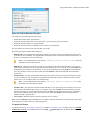
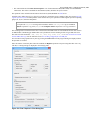
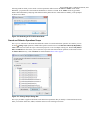
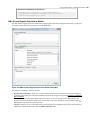
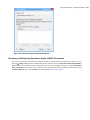
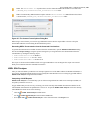
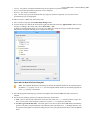
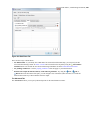
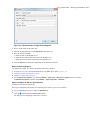
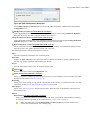
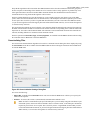
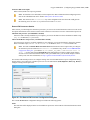
Global Options dialog box is displayed and it informs you that the operation will only override the options that are
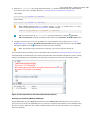
included in the imported file. You can enable the Reset all other options to their default values option to reset all
options to the default values before the file is imported.
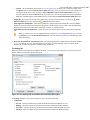
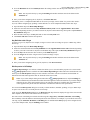
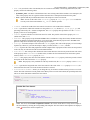
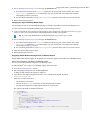
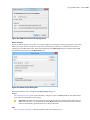
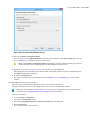
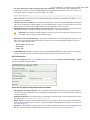
Export Global Options
Allows you to export Global Options to an XML options file. Some user-specific options that are private are not
included. For example, passwords and the name of the Review Author is not included in the export operation.
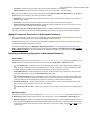
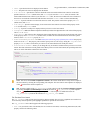
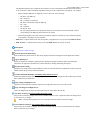
Oxygen XML Editor automatically stores your options in an XML options file. Depending on the platform you are
using, this file is located in the following directories:
•
•
•
•
[user-home-folder]\AppData\Roaming\com.oxygenxml for Windows Vista/7/8/10
[user-home-folder]\Application Data\com.oxygenxml for Windows XP
[user-home-folder]/Library/Preferences/com.oxygenxml for OS X
[user-home-folder]/.com.oxygenxml for Linux
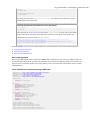
The name of the options file of Oxygen XML Editor 17.1 is oxyOptionsSa17.1.xml.
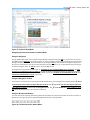
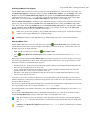
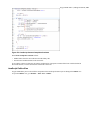
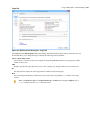
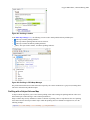
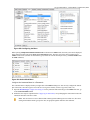
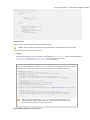
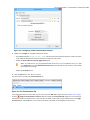
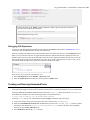
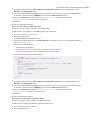
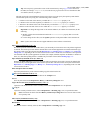
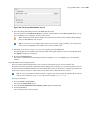
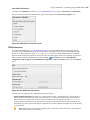
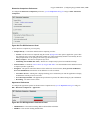
Reset Global Options
To reset all global preferences to their default values, select Reset Global Options from the Options menu.