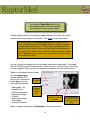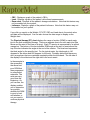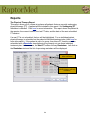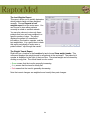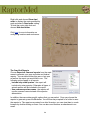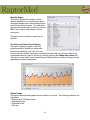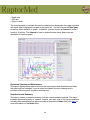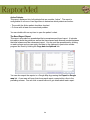
1
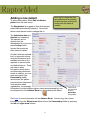
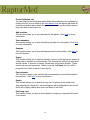
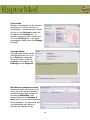
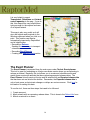
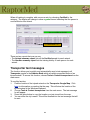
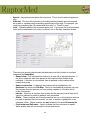
• Delete this patient - Although this should not need to be done often, this command
allows you to remove a patient from the system. This is typically only needed if a
patient was added accidentally.
• Assign to team (if Teams are enabled on your system)
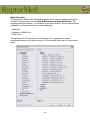
• Show species info page - An informational page on the web will be displayed for this
patient’s species. Note that these information pages need to be configured for each
species. See Species for more information.
• Goto location - this will automatically scroll the Enclosure list the location that currently
contains this animal.
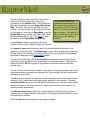
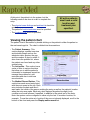
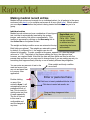
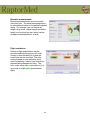
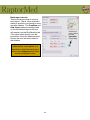
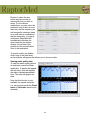
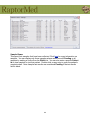
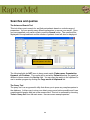
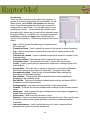
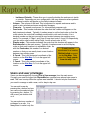
The enclosure/location list
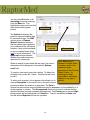
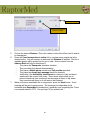
The cage\location list displays each enclosure or location. Each patient is displayed
below the appropriate location. Empty locations are highlighted in blue and cages under
construction in red. To access a patient record, simply double-click on it.
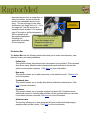
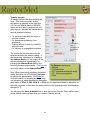
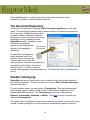
The following commands are available from by right-clicking on an entry in this list:
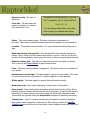
• Record group treatment
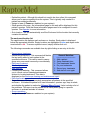
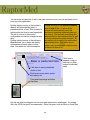
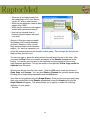
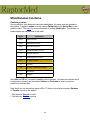
General Workflow
• Delete last group entry - This command will delete
the last entry made for each patient in the
-------------------------------specified enclosure. This can be used in case a
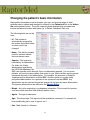
1. Add a patient
group entry was made incorrectly or accidentally.
2. Setup treatment plan
3. Print treatments sheets
• Edit group treatment
4. Do your treatments
• Show weight trends
5. Record your treatments
• Add reminder
6. And start all over again
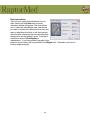
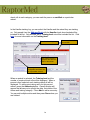
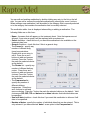
• Cleaning and watering - This command allows
you to record various cleaning/maintenance
actions for location/enclosure. This data is
displayed on the Enclosure cleaning and maintenance report.
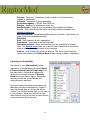
• Edit cage/location properties
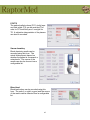
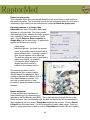
• Cage summary - This report concisely summarizes all patients in the specified
enclosure. It includes the patient’s id, band information, species, age, days in rehab,
and whether the patient is marked as Release Where Found. It also includes a list of
the problems. This report can be printed and is handy when going to a specific
enclosure to evaluate animals for release.
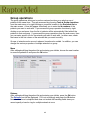
• Group operations
• Assign to team (if Teams are enabled on your system)
5