1
INSTALLING THE SOFTWARE
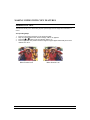
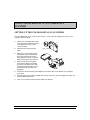
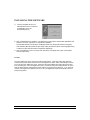
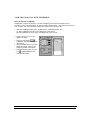
1. Insert the supplied CD into your
CD-ROM drive and run “setup.exe”,
an installation menu will
automatically pop up.
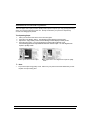
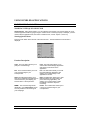
2. Click “Install Software” to install the color digital scan copier’s driver and bundled applications and
follow the on-screen instruction to complete the installation.
The bundled software includes Xerox TextBridge Classic 2.0 (the optical character recognition OCR software), MGI PhotoSuite SE (the image editing and personal photo retouching application),
or PaperCom (the office document management application).
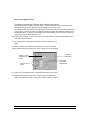
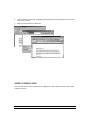
3. Click “View Manual” to view or print the user manual for color digital scan copier and bundled
software respectively.
➣ Note:
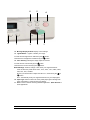
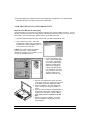
The color digital scan copier does not provide a power switch. When the power cable has been
connected, the power LED at the front of the color digital scan copier will be automatically turned on.
To turn off the color digital scan copier , disconnect the power adapter and unplug the power cable
from the power jack. The color digital scan copier provides an auto power saving function for you to
save the power without unplugging the power cable or turning the power switch off. If you have not
used the color digital scan copier over an hour, the color digital scan copier automatically returns to
power-saving status.
KWIK-KOPY
21