1
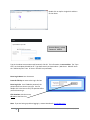
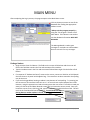
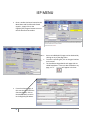
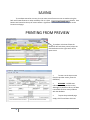
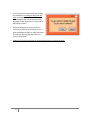
How to Attach the Conference Notice to an Email If you have not already done so, install PDF Creator on your laptop o All Programs o Click the folder Microsoft System Center 2012 R2 o Click Software Center o Click Find additional applications from the Application Catalog o Click in the Search box and enter PDF Creator o Click Install in the bottom right hand corner, scrolling may be needed to see this button o Click Yes, you will see a window informing you when the install is done In FileMaker open the Notice of Conference that you want to attach to an email. Select Preview in English or Spanish as needed. Select the File Menu and select Print. In the Select Printer window, scroll if needed, and double click on PDF Creator. In the PDF Creator window give the file a name that will help you identify the file later. A suggestion might be noticeab, where ‘ab’ are the initials of the student. Don’t worry about entering any information in the remaining areas of this window. Click on Save. Select a location to save the file, such as your H:Drive or Google Drive. Click on Save. The PDF version of the Notice will open, you can just close it. Press the Enter key to exit preview mode in FileMaker. Now you can open Outlook and create a new email. Then simply attach the PDF file of the notice to the email. 16 Updated 8/10/2015