1
The TMA window
TMA
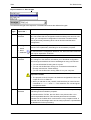
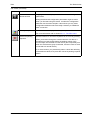
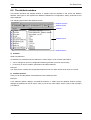
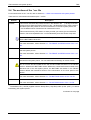
6.3 The toolbar
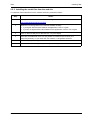
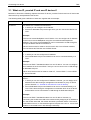
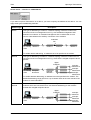
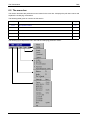
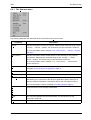
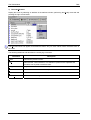
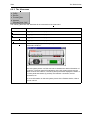
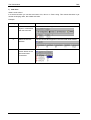
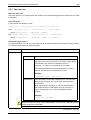
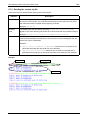
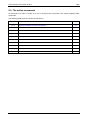
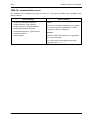
This section describes the icons located in the toolbar. It displays the icons and explains their function.
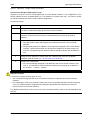
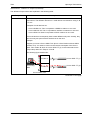
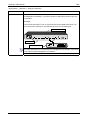
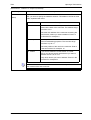
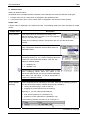
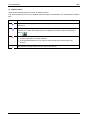
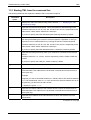
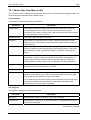
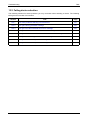
The toolbar contains the most important TMA commandos represented as icons. This enables quick
access to these commands. The following table lists the icons:
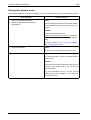
Icon
Name
Connect to device
Function
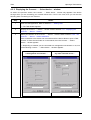
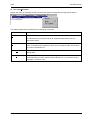
Press this button to connect to a device. Pressing this button
brings up the Connect… – Device… window.
For more information refer to Section 4.2.2 - The Connect… –
Device… window selections.
Disconnect from
device or application
Press this button to disconnect from the current device or
application.
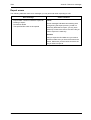
Select device
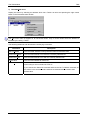
Press this button to select another device on the network you are
currently connected to. Pressing this button brings up the
Connect… – Select device… window.
For more information refer to Section 4.3.3 - The Connect… –
Select device… window selections.
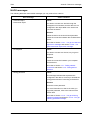
Reconnect to device
or application
Press this button to reconnect to the current device or application.
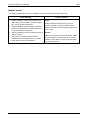
Send all attributes to
device
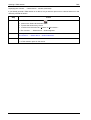
Press this button to send the configuration attributes to the device.
Retrieve all attributes
from device
Press this button to retrieve all the attributes from the device.
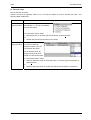
Export data to file
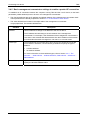
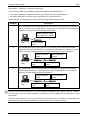
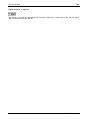
If you made changes in the configuration of the device, press the
Send all attributes to device button. It sends the new configuration
to the device and this configuration is then activated.
Provided that the upload functionality is activated, the read-only
attributes (status, performance and alarms) are automatically
retrieved from the device. This is not so for the configuration
attributes. Pressing the Retrieve all attributes from device button
however, retrieves all attributes from the device.
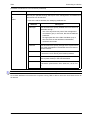
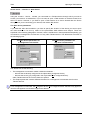
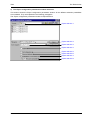
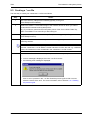
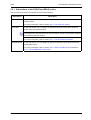
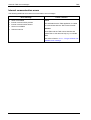
Press this button to export data to a file. Pressing this button
brings up the Export configuration parameters window.
For more information refer to Section 6.2.4 - The Tools menu.
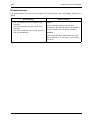
Import data from file
Press this button to import data from a file. Pressing this button
brings up the Import configuration window.
For more information refer to Section 6.2.4 - The Tools menu.
Continued on next page
102
User manual