1
Digital Projection Projector Controller
GAMUT
Gamut Tool (continued)
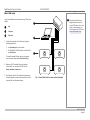
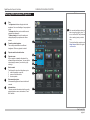
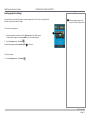
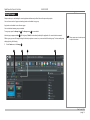
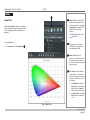
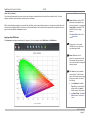
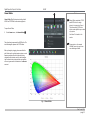
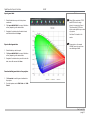
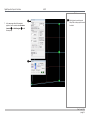
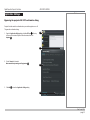
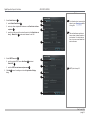
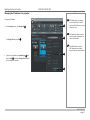
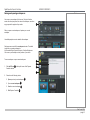
The yellow triangle represents the current red, green and blue gamut coordinates that will be sent to the user table of choice. The white
triangles visualize the measured data for each projector on the network.
Edit the yellow triangle by dragging its corners within the grid. Make sure the yellow triangle occupies as much space as possible while at the
same time being completely within each and every one of the white triangles. Use the zoom buttons to pinpoint the exact position of the red,
green and blue coordinates. Use Reset to zoom out.
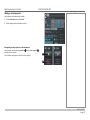
Applying edited TCGD data
Notes
Gamut Tool allows editing TCGD
data which can be applied to any
number of projectors. In comparison,
Gamut Editor manipulates TCGD
and MCGD data for a single
projector.
See Gamut Editor further in this
section.
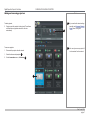
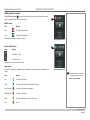
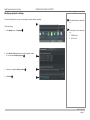
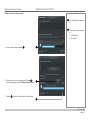
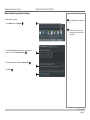
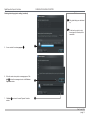
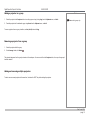
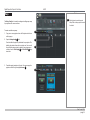
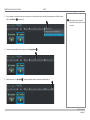
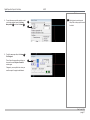
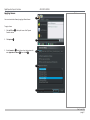
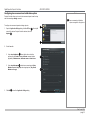
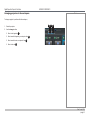
Click Download to send gamut coordinates to the projectors. From the dropdown, select TCGD Table 1 or TCGD Table 2.
Some projectors, for example
HIGHlite Laser, only support one
user-defined gamut table.
Gamut Tool works with all
projectors. A projector needs to be
disconnected from the network in
order to be excluded from the gamut
matching process.
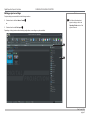
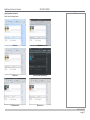
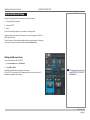
The Gamut tool uses predefined
measured data. To edit that data,
and to edit individual numeric values
within the user tables, do either of
the following:

•
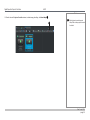
click ColorMax on the Task
Pane. When you have finished
editing a table, click Send to
load the data into the projector.
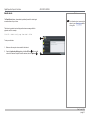
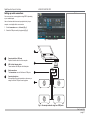
•
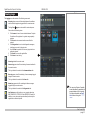
use Gamut Editor. See Gamut
Editor further in this section.
Rev F July 2015
page 21