1
Workorderama PM User Manual
V4.1 R2.0
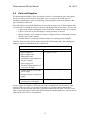
Approach and Conventions Used in this Manual
Understanding the approach and conventions used in this manual will allow you to learn and
successfully use Workorderama PM as quickly as possible:
We’ll present the information in this manual in a top-down fashion, first covering the
fundamentals, and then building-upon information already covered to describe how to
perform work order administration tasks. Also, configuration of your Workorderama PM
software is covered in a chapter at the end of this manual.
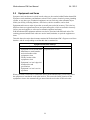
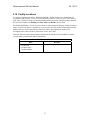
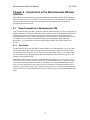
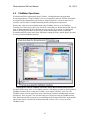
The manual is divided into chapters, sections, and subsections. You can distinguish these by
their numbering and font size. These examples are actual chapter, section, and subsection
headers from this manual:
Chapter 4 Introduction to the Workorderama PM
User Interface
4.1
Data Presentation in Workorderama PM
4.1.1 Data Fields
We use italics font when we are defining a new term, and also when we are referring directly
to a term.
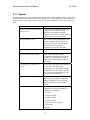
We use bold font to indicate a command executed through a menu or button, and when
specifying a label of a data field or button, or the text or selection entered into a data field.
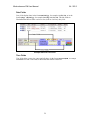
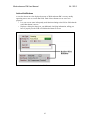
For commands entered using the menu at the top of the application’s window, this will
specify the sequence of menu commands required to execute a specific function. Here are
some examples of how bold font is used:
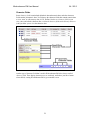
− File>Print prints the records displayed on the screen
− The Order # field specifies the work order ID
− Selections to the Job Type field include “Housekeeping”, “Carpentry”,
“Electrical”, “Keys / Locks”, etc.
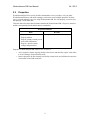
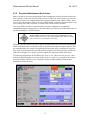
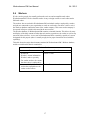
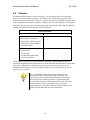
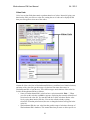
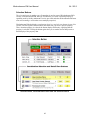
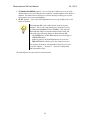
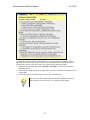
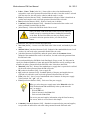
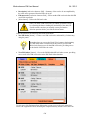
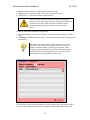
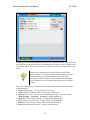
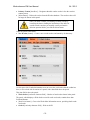
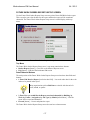
Worthwhile information that supplements a topic, but that doesn’t necessarily relate directly
to the topic discussion, is shown in clarifying information insets like this:
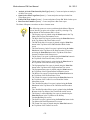
This is an example of how a clarifying information inset looks.
These provide supplemental information for the topic.
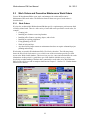
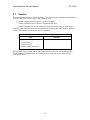
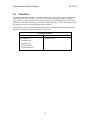
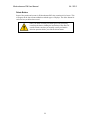
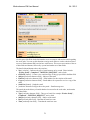
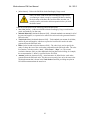
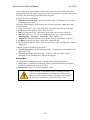
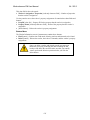
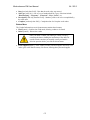
Instructions on how to use the Workorderama PM as effectively and efficiently as possible,
using shortcut keys and other productivity enhancing techniques, are shown in power user
insets, like this:
This is an example of how a power user inset looks. These
provide instructions on how to more efficiently and effectively
use the software.
1