1
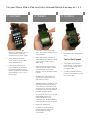
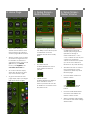
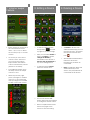
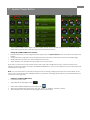
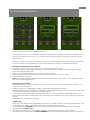
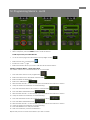
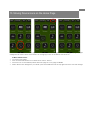
4. Home Page 5. Setup Screen – Button Sounds • This is where all of your devices are located. If more than 9 devices are created, another page will be inserted. • • There is no limit to the number of Devices or Pages that can be created, so feel free to add devices from any room in your house, your friends house, your neighbors, the corner bar, the hotel etc. • To Control a device simply select the devices icon from any of the Device pages. • To get to the devices next page simply swipe your finger right to left or left to right. iGi Corp. • • i-Got-Control gives the user the ability to have button press confirmation via sound, vibration or both or be totally silent. Key Click On/Off enables/disables the sound when a Remote Button is pressed. 6. Setup Screen Master Volume • Control allows the user to pick a device as the Master Volume Control for the system (i.e. the TV or the Surround Receiver or any other device). • This allows the user to control the overall volume of the system from within any other Remote page. • From the SETUP screen turn Master Volume Vibrate On/Off enables/disables the ability to have ‘vibration’ when a button is pressed. This can be in addition to or instead of the Key Click sound. -‐ 3 -‐ For Home Theater configurations where all devices play through the TV Speakers or through a Surround Receiver, i-Got- ON . This will enable the Scroll wheel below. • From the Scroll Wheel select the device that will be the Master Volume source. • When complete select DONE from above and these settings will be stored. i-Got-Control ™