1
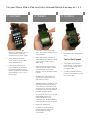
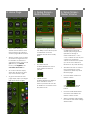
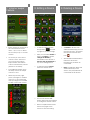
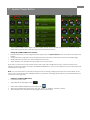
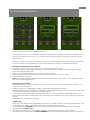
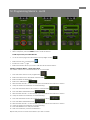
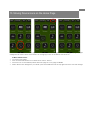
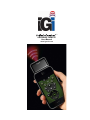
Turn your iPhone, iPad or iPod touch into a Universal Remote is as easy as 1, 2, 3…. 1. Connect • Simply connect the IRB1 Remote to the iPhone or iPod Touch’s Dock Connector located on the bottom edge. • When the iPhone®/iPod® touch is turned ON the IRB1’s LED’s will blink Green. • If the Application has not been installed, the iPhone or iPod Touch will direct you to iTunes App Store to download and install the i-Got-Control remote App. iGi Corp. 2. Select • • • Once the i-Got-Control App starts, click on the ADD button to add a device. Select the Device you want to add using the Left selector wheel (i.e. TV, DVD, Home Control – Lights etc.). Select the Brand of the Device using the center selector wheel. (i.e. Panasonic) or for faster selection use the Scroll Bar at the bottom. • Available IR Code Libraries for your device will appear in the right selector wheel. • Highlight the first code library and hit the Test Power button. If this code works press DONE to save the device. If it does not work, go to the next code set and repeat until your device is found. • To automate this process, use the START SEARCH button to automatically test each command set. Hit STOP SEARCH when the device turns ON or OFF. • Repeat for all Devices • For devices not found in the included Library, skip to the section titled ‘Learning Commands’. -‐ 2 -‐ 3. Control • You’re Done!! • Now Select the saved device and You’ve-Got-Control! • Two pages are loaded for each device. To advance to the next page simply swipe from right to left. • To select a different device, press the Home button on the top of the page. i-Got-Control ™