1
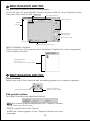
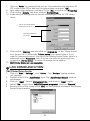
Run Page
Link pages To Run
Set ID
: Run a specified page on the LED Display Board.
: Link some pages in order to Run more than one Page.
For example, type in 'abc', the sign will display
page A, page B, page C content consecutively.
: Set ID of the Led Display Board .
Note: ID00 represents global call. If yon hare more than one sign, you might
want to connect all the signs in a network, e.g. from ID01to ID05 you can
send message to any sign in the network by individual ID. To broadcast to all
the signs, use ID 00.
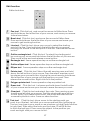
Set Clock
: Set the Date and Time the Display Board system Clock.
Delete Page
: Delete a specified page information on the sign.
Set Brightness
: Set Display brightness, there are 4 levels of brightness.
Display by Schedule : Schedule a message to be displayed.
you may make some pages display from sometime
to another time. max can set up to 5 Schedule items
one time.
Delete page
:Delete some pages in the running messages.
Delete Schedule
:Delete some items in Schedule table.
Delete All
:Delete all messages in the LED Display Board.
(Except system clock)
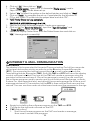
CONFIGURE SOFTWARE
1.
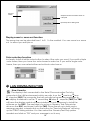
Go to File and Set Communication
Select the Com Port
2.
Click on OK when your settings are complete.
SENDING A MESSAGE
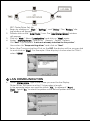
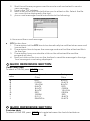
The Send Message icon is used to transmit the message to the sign.
1. In the Message Window, type in a test message such as 'Welcome to my
message".
2. Click on the icon on the Toolbar to bring up the
Message window.
Enter the Sign ID Number
** Select a page to send
your message to.
** You have pages A-Z available. Each page can be used to store a
different message.
3. Click on OK to send your message to the sign. If your sign did not
receive your message, try sending the message again.
15