1
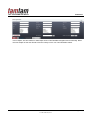
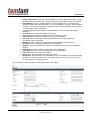
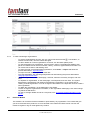
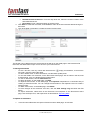
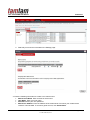
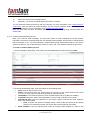
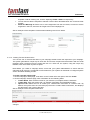
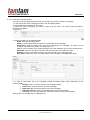
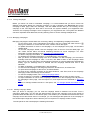
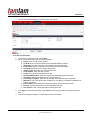
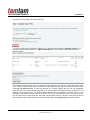
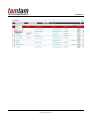
Title: TamTamCRM User Manual Confidential Assigned to. Select the individual who is responsible for communicating with this contact. By default, you are assigned to the contact. 3. Click Save to save the contact; click Cancel to return to the Contact’s home page without creating the new contact. 5.7.2. To View and Manage Contacts - - 5.7.3. To delete one or more of the listed contacts, use the Mass Update panel. To do this, check off appropriate contacts, click Action -> Select Delete. To display the detail view for a contact, click on the contact name in the list. To export records, check off the appropriate contacts and click Action ->Select Export. To edit contact information, in the detail view, click Edit. To duplicate contact information, in the detail view, click Duplicate. To track changes made to contact information over time, in the detail view, click the View Change Log link located below the Edit button. To manage newsletter subscriptions, on the detail page, click Manage Subscriptions. To add the individual to a newsletter subscription mailing list, select the newsletter from the Available NewsLetters list and drag it to the NewsLetters Subscribed To list. Similarly, to remove the individual from the mailing list of a newsletter, drag the newsletter from the Newsletters Subscribed to list to the Available Newsletters list. Click Save to update the information. To manage records in a sub-panel, see “To manage related information in sub-panels”. Creating Contacts from vCards You can also create a new contact in TamTamCRM importing a vCard file from your local file system. To import a vCard: 1. In the Action bar, click Create Contact from vCard. 2. On the Contacts Import VCard page, click Browse to navigate to the vCard location on the local file system. 3. In the Choose File dialog box, select the file and click Open. 4. The file path displays in the Contacts Import vCard field. 5. Click Import vCard. See below: The information in the vCard displays on a new Contacts detail page. The system displays a vCard button adjacent to the contact name. You can click this button to open the Page: 40/76 © TAMTAMCRM, 2012