1
Melodyne editor
Backing up and exchanging projects
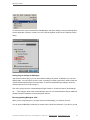
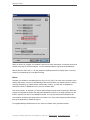
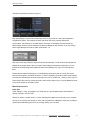
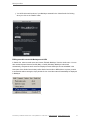
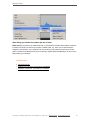
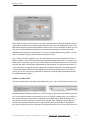
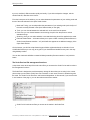
During transfers, Melodyne records the track’s signal, making a copy of the passages transferred. The
resulting audio files are stored in a folder named “Transfers”, which you create in Melodyne under
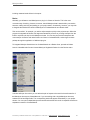
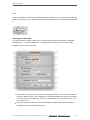
Settings > File Manager. Ideally you should create a subfolder called “Transfers” for your current Logic
Pro project within the project folder belonging to it. Now assign your transfers to this folder in the first
instance of Melodyne you create by choosing Settings > File Manager > “Store transfers to” and
navigating to it. To do this, click on the ellipsis (“…”) icon.
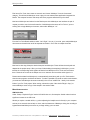
Now if you want to be sure, when archiving your project or passing it on to others, that all instances of
Melodyne will be able subsequently to find the audio files they need, the only thing you need to
archive or pass on is the project folder.
If you are making a copy of your project using the “Save Copy As ...” command, don’t forget to make a
manual copy of the Transfers folder as well. As soon as you have done this, open the copy of your
project.
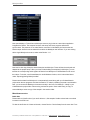
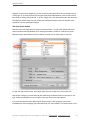
Choose Settings > File Manager > “Store transfers to” and navigate as before to the newly copied
Transfers folder to assign the path.
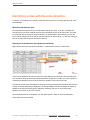
When archiving and passing on projects, you do not need to worry about Melodyne’s audio cache, the
size and location of which can be selected from Melodyne’s Preferences dialog. Melodyne will
automatically restore the parameters found there, so there is no need to archive or copy them
separately.
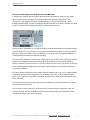
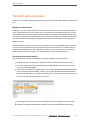
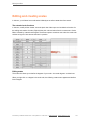
Duplicating tracks
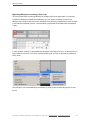
Sometimes you may want to copy a track including its Melodyne instance and Melodyne editing – in
order, for instance, to generate a second voice. To do this, use either the “New Track with Duplicate
Setting” icon or the keyboard shortcut CMD-D. Drag the audio material belonging to the original track
into the new track in order to duplicate it.
© Celemony Software GmbH 2015 • Last updated on 14.01.2015 • Online Manual • www.celemony.com
55