1
84 Exchanging Messages
Tip
You can also manually synchronize anytime by tapping Sync in ActiveSync or Menu > Send/Receive in Outlook
Mobile.
To send and receive e-mail for an Outlook account
1. Connect your device to your PC using the USB cable or Bluetooth.
Otherwise, connect wirelessly if you are synchronizing Outlook
e-mail with the Exchange Server. For more information, see Chapter 8.
2. Synchronization automatically begins, and your device sends and receives Outlook e-mail.
Tip
You can also manually synchronize anytime by tapping Sync in ActiveSync or Menu > Send/Receive in Outlook
Mobile.
To send and receive e-mail for a POP3/IMAP4 account
If you have an e-mail account with an ISP or a work account that you access using a VPN server connection,
you send and receive messages through a remote e-mail server. Before sending and downloading messages,
you need to connect to the Internet or your corporate network.
1. Tap Start > Messaging and tap your POP3 or IMAP4 e-mail account.
2. Tap Menu > Send/Receive. Messages on your device and e-mail server are synchronized: new
messages are downloaded to the device Inbox folder, messages in the Outbox folder are sent, and
messages deleted from the server are removed from the device Inbox.
Customize e-mail settings
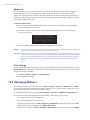
To change the download size and format for Outlook e-mail
1. Disconnect your device from the computer.
2. Tap Start > Programs > ActiveSync.
3. Tap Menu > Options, select E-mail, then tap Settings.
4. On the E-mail Sync Options screen:
• Under Download size limit, select the desired e-mail size.
• Under Message format, select HTML or Plain text.
5. Close ActiveSync and reconnect your device to the computer.
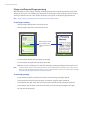
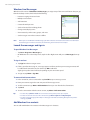
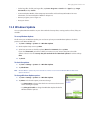
To change the download size and format for POP3/IMAP4 e-mail
1. Tap Menu > Options on the Account Picker screen, or tap Menu > Tools > Options while you’re in a
message list.
2. Tap your e-mail account.
3. Tap Download Size Settings.
4. Under Message format, select HTML or Plain text.
5. Under Download size limit, select the desired e-mail size.
6. Tap Done.
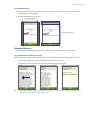
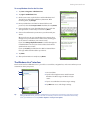
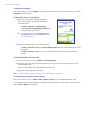
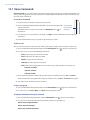
To automatically receive attachments on Outlook e-mails
1. Tap Start > Programs > ActiveSync.
2. Tap Menu > Options.
3. Tap E-mail > Settings, then select Include file attachments.