1
76 Exchanging Messages
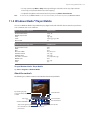
7.1 Messaging
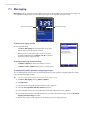
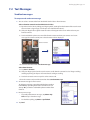
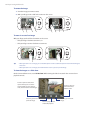
Messaging is where your text messages (SMS) and e-mails are located. When you receive new messages, you
can open them from the Today screen. Simply tap the type of message that you want to open.
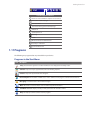
New e-mail messages
New text messages
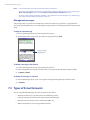
To select a messaging account
Do one of the following:
• Tap Start > Messaging. The Account Picker screen then
appears where you can select an account.
• While you are in a message list of a certain account, for
example Text/Multimedia, tap Menu > Go To to switch to
other types of messaging accounts.
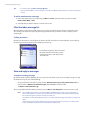
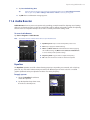
To configure message account settings
• Tap Menu > Options on the Account Picker screen; or
• Tap Menu > Tools > Options while you’re in a message list.
Account Picker screen
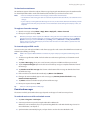
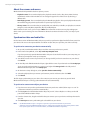
To automatically add a signature in outgoing messages
You can automatically add your name and other information as your signature in outgoing SMS and e-mail
messages by following these steps:
Tip
You need to specify your signature for each type of messaging accounts.
1. Tap Start > Messaging, then tap Menu > Options.
2. Tap Signatures.
3. Select a type of messaging account in which to add a signature.
4. Select the Use signature with this account check box.
5. In the provided text box, enter the information that will be displayed as your signature.
6. If you want the signature to be added whenever you reply or forward messages, select the Use when
replying and forwarding check box.
7. Repeat steps 3 to 6 to add a signature to the other types of messaging accounts.