1
Chapter 13. Playing multimedia
13.9.4. Kaffeine
Kaffeine is a media player that can play streaming content, DVBs, DVDs, and CDs. To get
streaming content over the web, you need a Mozilla plug-in for the program, which is available
from http://sourceforge.net/project/downloading.php?groupname=kaffeine&filename=kaffeinemozilla-0.2.tar.bz2&use_mirror=internap. For more information about Kaffeine generally, refer to the
JuK website at http://kaffeine.kde.org/
13.9.4.1. Using Kaffeine Media Player
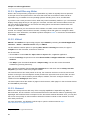
The first window that opens contains five shortcut icons:
• Play File plays a file from the computer.
• Play Audio CD plays the CD in your CD drive.
• Play Video CD plays a CD that contains video files.
• Play DVD plays a DVD.
• Digital TVplays TV input from a capture card.
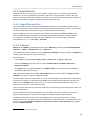
On the left side of the window are four small icons:
• The Start tab on top brings up the first window, wherever you are in the program.
• The Playback tab opens the Player Window.
• Selecting the next tab opens the Playlist.
• The bottom tab takes shows the Television provides TV controls and output.
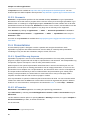
The toolbar along the bottom of this window allows you to Play, Pause, Skip Backward or Forward,
Stop, and Adjust the Volume.
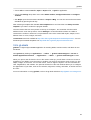
The top menu panel has:
• File which allows you to Open a File, URL or Directory, Open a DVD, VCD, Audio CD and
Network Broadcasting. You can also Save Stream, Save a Screenshot, Quit with Options, or
Quit.
• From the View menu you have the options for the Full Screen Mode, Minimal Mode, Toggle
Playlist/Player, Enable Auto Resize or Keep Original Aspect.
• Selecting Player gives you the option to Play, Pause, Stop, go to the Next track or Previous track,
Fast Forward, Slow Motion, and Jump to Position. You can also Navigate a DVD, CD, Video,
configure Subtitles, access Track Info and enable or disable Plugins.
• The Playlist drop-down lets you Shuffle, Repeat, Download covers, Clear Current Playlist, start
a New Playlist, Import, Save or Remove a Playlist.
• Settings allow you to select a Player Engine (Xine or GStreamer), choose the Toolbars,
Configure Shortcuts, Toolbars and Kaffeine Player, and to set xine Engine Paramenters.
• Clicking Help > Kaffeine Player Handbook or pressing the F1 key, opens the manual.
13.9.5. KMix
KMix is a sound mixer that allows you to control volume settings for sound inputs to and outputs
from your computer. For more information refer to the KMix website at http://docs.kde.org/stable/en/
kdemultimedia/kmix/index.html
74