1
User Manual
3.3.
Elixir CASE
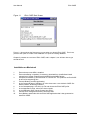
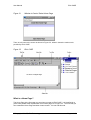
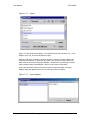
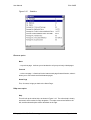
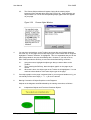
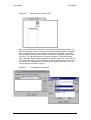
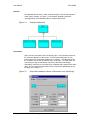
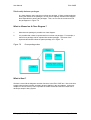
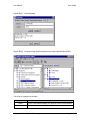
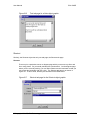
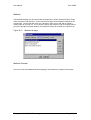
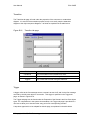
The Choose Object window will appear, listing all the existing object
instances of the selected object type (see Figure 3.20). Upon selecting one
object instance, a view of the corresponding object graphic will then appear
on your page.
Figure 3.20
4.
Choose Object Window
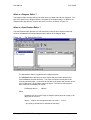
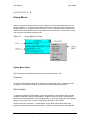
You may have noticed that, on the Toolbox, each time after you finished drawing a
use case, say, on the page, the use case object type on the Toolbox will no longer be
highlighted. Instead, “Selection” is highlighted. This is in expectation that you will not
want to draw another use case immediately after. However, if you wish to do so,
Elixir CASE provides the Shift key to overcome the default setting, as follows :
4.1.
4.2.
4.3.
Using the mouse, highlight the object type that you want to draw on the
Toolbox.
Then, pressing the Shift key, draw the object graphic on the page as per
normal.
When this is done, the object type on the Toolbox is still highlighted. You can
continue to draw another of the same object type on the page.
5.
If an object graphic on the page is selected (that is, you see green handles on it), you
can actually use the arrow keys (← ↑ ↓ →) to move it around.
6.
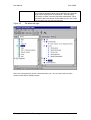
Naming Convention of Object Graphics on the Diagrams
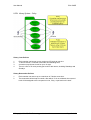
Objects on the diagrams are differentiated by the naming convention, as follows :
6.1.
Independent Objects and First-level Container Objects
© Copyright 2000 CE, Elixir Technology
Version 1.2
Page 26 of 95