1
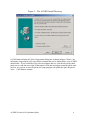
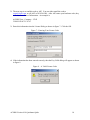
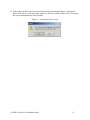
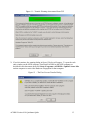
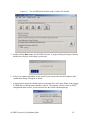
6. Click Yes and the Lock Transferred dialog shown in figure 15 below will open.
*** PLEASE NOTE ***
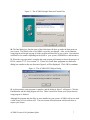
At this point ACORN is disabled on the current computer, so you absolutely must
write down the Name and Key in figure 15 below!
Figure 15 – The Lock Transferred Dialog and the Name and Key for the New Computer
TIP: As noted in the dialog box, you can also select Alt->Printscreen in Windows to copy
this dialog box to the windows clipboard. You could then paste this image into another
windows program such as Microsoft Word to save or print this information.
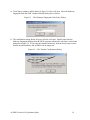
7. This dialog box will appear three times as a reminder, so after the Name and Key are
saved, hit OK until the final dialog closes. At this point ACORN will now run on the NEW
computer and will no longer run on this computer.
ACORN Version 4.10 Quickstart Quide
15