1
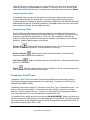
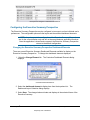
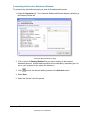
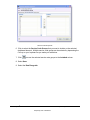
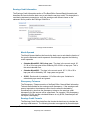
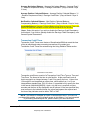
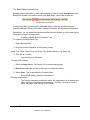
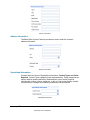
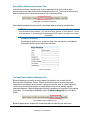
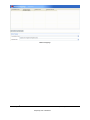
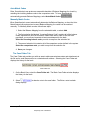
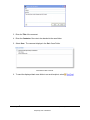
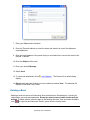
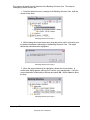
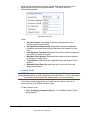
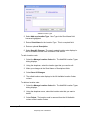
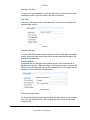
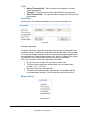
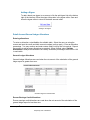
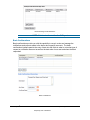
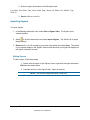
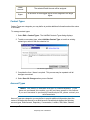
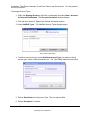
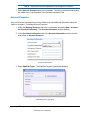
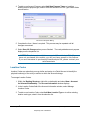
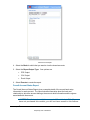
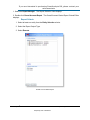
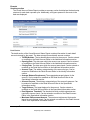
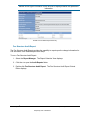
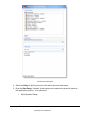
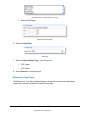
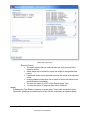
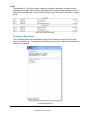
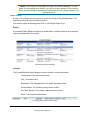
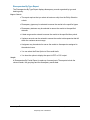
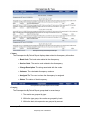
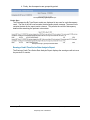
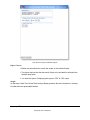
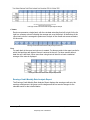
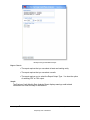
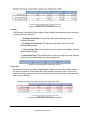
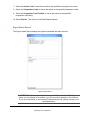
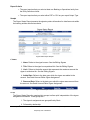
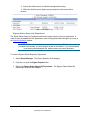
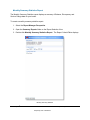
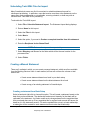
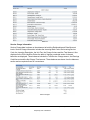
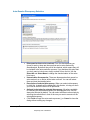
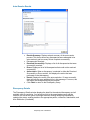
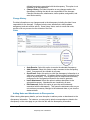
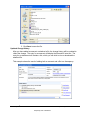
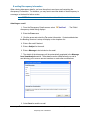
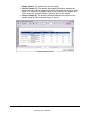
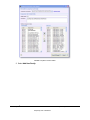
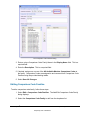
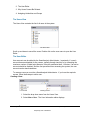
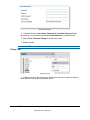
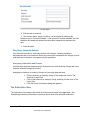
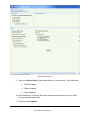
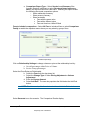
5. Select the option, if you want to Produce a complete baseline from this statement. 6. Enter the Recipients for the Status Email. NOTE: Each email entry must be separated by a comma. 7. Select Directory and Browse for the folder which will be the new location for the processed files. 8. Select Finish. Creating and Importing CSV Service Charge Files SmartAnalysis allows you to import your Service Charge Fees in CSV text file format. This is provided as an alternative for users unable to get a bank analysis file/statement. To create a CSV Service Charge Import file: 1. Open Microsoft Excel. 2. Enter the bank charges information in the following format: 3. Save the file as a .csv file and follow the directions below to import. To import a CSV Service Charge file: 1. Select File > Import Statement. The Statement Import dialog displays. 2. Select File and browse for the Statement Data File. 3. Select the CSV Service Charge radio button. 4. Select your options: Produce complete baseline from this statement and/or Open imported statement in viewer. 5. Select Finish. SmartAnalysis® is a trademark of 134 Proprietary and Confidential Chesapeake System Solutions