1
Pulsed RF
Scale Tab
Scale Tab
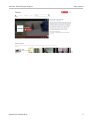
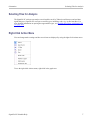
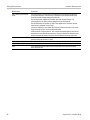
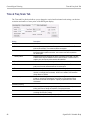
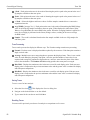
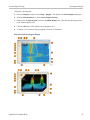
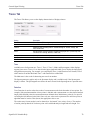
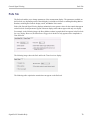
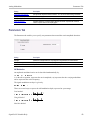
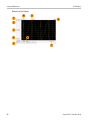
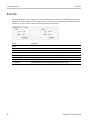
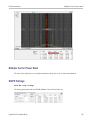
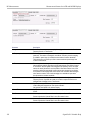
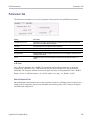
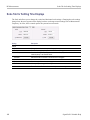
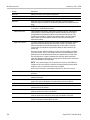
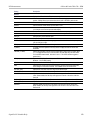
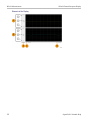
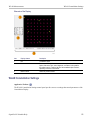
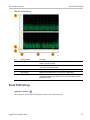
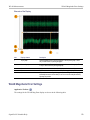
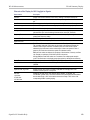
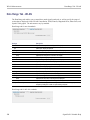
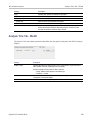
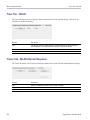
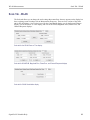
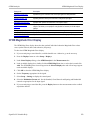
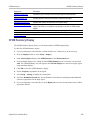
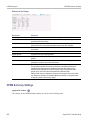
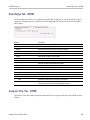
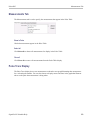
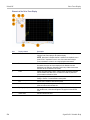
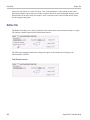
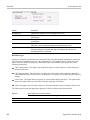
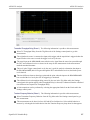
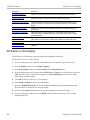
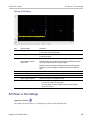
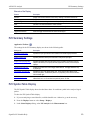
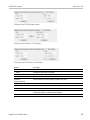
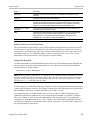
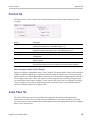
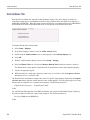
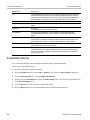
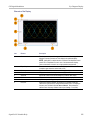
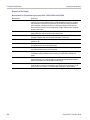
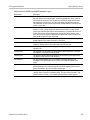
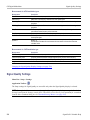
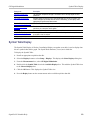
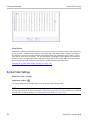
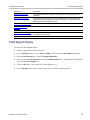
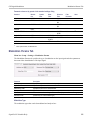
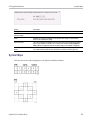
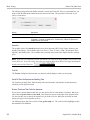
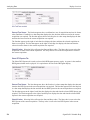
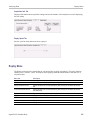
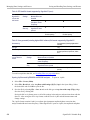
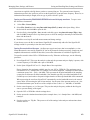
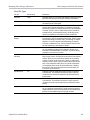
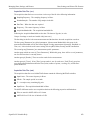
The Scale tab allows you to change the vertical and horizontal scale settings. Changing the scale settings
changes how the trace appears on the display but does not change control settings such as Measurement
Frequency. In effect, these controls operate like pan and zoom controls.
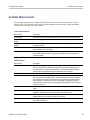
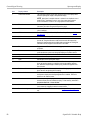
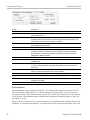
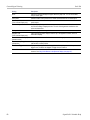
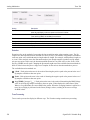
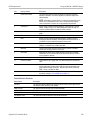
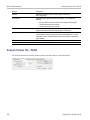
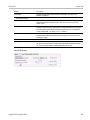
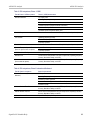
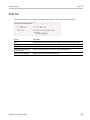
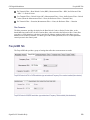
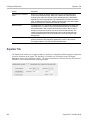
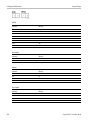
Setting
Description
Vertical
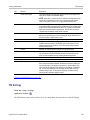
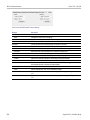
Controls the vertical position and scale of the trace display.
Scale
Changes the vertical scale. The units for this setting depend on the statistic selected
from the Result drop-down list in the Pulse Statistics display.
Position
Adjusts the Reference Level away from the top of the trace display. The units for this
setting depend on the statistic selected from the Result drop-down list in the Pulse
Statistics display.
Autoscale
Resets the scale of the vertical axis to contain the complete trace.
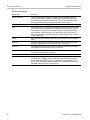
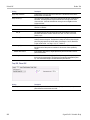
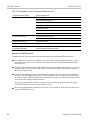
Horizontal
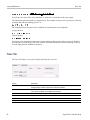
Controls the span of the trace display and position of the trace.
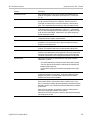
Scale
Allows you to change the span.
Position
Allows you to pan a zoomed trace.
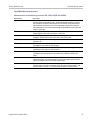
Full Scale (Pulse Trace
display only)
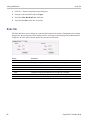
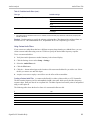
Specifies the Horizontal scale default.
Selected
Sets the horizontal scale default to be based on the result value for the currently-select
pulse.
Max Pulse
Sets the horizontal scale default to be based on the largest value for the selected pulse
measurement.
Autoscale
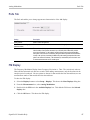
Resets the scale of the horizontal axis to contain the complete trace.
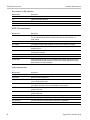
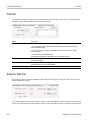
Plot (Pulse Statistics display
only)
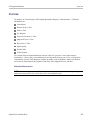
Specifies the FFT, Trend, Time Trend, or Histogram plot.
Reset Scale
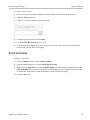
Restores all settings to their default values.
xxx
SignalVu-PC Printable Help
247