1
3.3 Use
touch panel
4.
Equipment basic set
Seung: Click setlng icons
l,
enter setting intedace
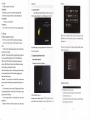
Following the main
touch screen area is described, and describes some ofthe tips for how
to use the louch screen.
No mafrer which interface you are on the screen, can go back to
on the boftod dght
main sc.eon through pressing ihe sofr key I
Device equipped with
a touch screen
cornerof the main screen.
lAttenlionlThe
main screen soft key
]undions
as the machine
oack kerE!
ln differenl applicatons, by lapping ihe back sofl key lon the
bofromright corneron the touch screen, you can retum to its inl€rface on
the upfloor.
ln dfferent applications, by iapping the menu key lon the upper
right @mer oftouch screen, the screen wilL appear the operation setting
intedace as foLlows.
(Rema*l
manut
:
The maln scroen sofl k€y ]unctions as th€ machine
4.2
m
M
Unkn0wrr rinnr.on ol
rrk
Unknown Sourc6s", then cl ck 'OK"
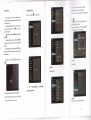
at{ill.ntkrr rrutrrU,r and uninstaLl Appl cation
I llotrwl t wltrrr ylrr I k,irwars Upgrade, pls close the
Mnn6U€
l:; I U]::l
,,, .
>,,Manas€ apprication"And then
^,rircs,ion
thor6 will hq IrEl.llorl lln, prcgram llst
2. Olhk ynr wHill !, rnilrralall lcons, will entor the following intedace
Appllcation
Manage applications
1.1
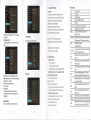
Silent
mode,Volume,Notifcation
ringtone,Audible
selectlon,Screen lock sounds
ln the main inteda@, you can touch the lcon to open theAPPS
ln different browse(fl|e, music, video, pictures), You shift and drag the
scroll bar so that the fle list can up or down io roll.
USB connect
4.4
Storrg€
RBmovo TF
cad,
vl€w
oflh€
availabl€ storage space