1
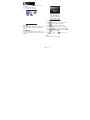
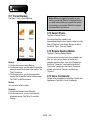
9.11 Pocket Backup
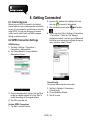
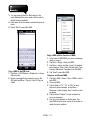
Tap Start > Tools > Pocket Backup.
Note: Before you upgrade the system of your
device, you can tap “Backup” to backup the files
you want to save. After you upgrade the system
of your device, you can tap “Restore” to restore
the saved files to your device.
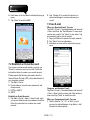
9.12 Search Phone
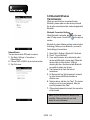
Tap Start > Search Phone.
You can get the files or data by the
keyword-searching function. Input the keyword in the
field of “Search for” and choose the type of data in
the field of “Type”. Then tap “Search”.
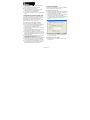
9.13 Remote Desktop Mobile
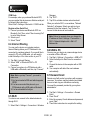
Tap Start > Remote Desktop Mobile.
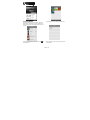
Backup
1. On the initial screen, select Backup.
2. On the next screen, you are asked to select the
items you would like to save in the backup. Tap
“Next” to continue.
3. On the next screen, you should provide the
name of the file and the location of the storage.
Tap “Next” to start the process.
Restore
You can select a file to restore.
You can connect your device to your computer, and
then, you can use your device to control your
computer via Active Sync. Input your IP address in
the field of “Computer”, user name in the field of
“User name”, password in the field of “Password”,
domain in the field of “Domain”, and then, tap
“Connect.”
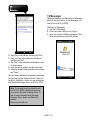
9.14 Voice Commander
Record voice commands for activating Contacts and
Applications. Tap Start > Voice Commander.
Schedule
1. On the initial screen, select Schedule.
2. On the next screen, you can customize the
scheduled backup. Tap “Done” to save the
settings.
S1205│ 9-6