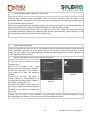
1
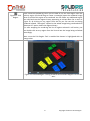
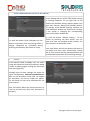
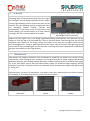
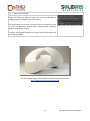
Figure 21: Pick
Region
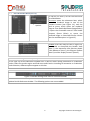
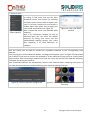
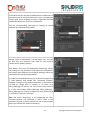
Once Interactive Rendering starts you are able to use the Pick Region tool and
select a region (click and drag to create a rectangle) upon the rendered image
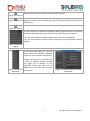
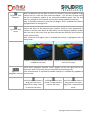
(Area C) and let this region to be rendered. You can select any additional region
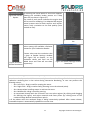
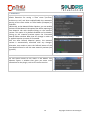
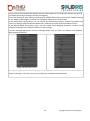
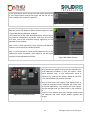
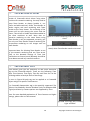
you need and see the regions history appearing at a drop down list as seen in
Figure 22. By clicking on any region from the list you can see this one being
rendered instead. “No region” option let the whole image being rendered while
“Remove All” option clears the regions history.
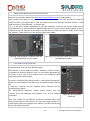
Tip: after stopping the rendering the list of regions selected is still active; you
can double click on any region from the list and see the image being refreshed
accordingly.
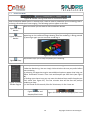
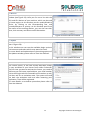
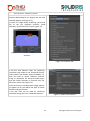
Note: once the Pick Region Tool is enabled the button is highlighted with an
orange color.
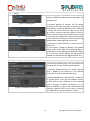
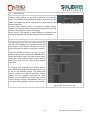
Figure 22: Selected Region is being rendered and available Regions List can be
seen
8
Copyright © Solid Iris Technologies