1
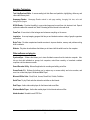
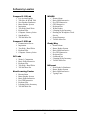
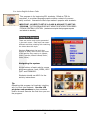
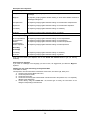
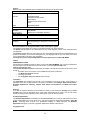
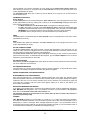
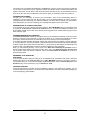
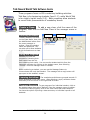
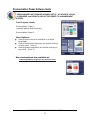
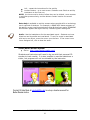
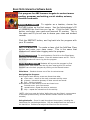
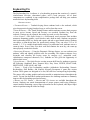
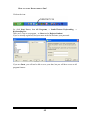
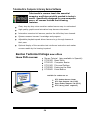
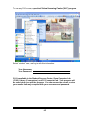
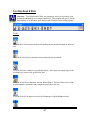
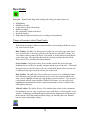
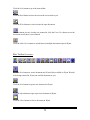
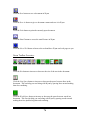
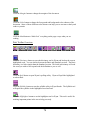
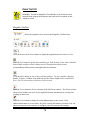
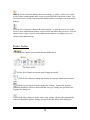
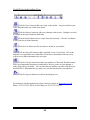
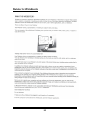
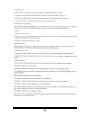
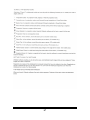
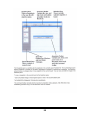
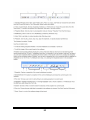
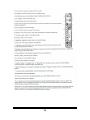
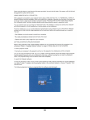
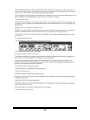
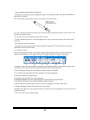
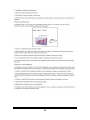
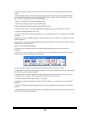
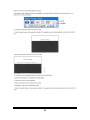
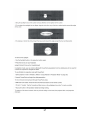
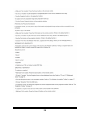
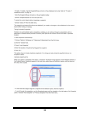
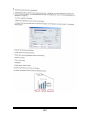
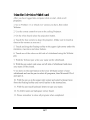
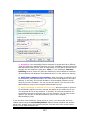
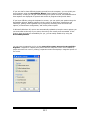
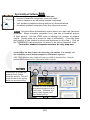
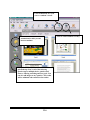
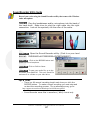
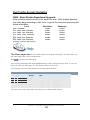
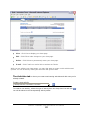
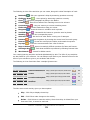
Wynn Reader Overview: Wynn Reader helps with reading and writing. Its main features are: Highlighting Reading text aloud Using colors to help with reading Makes text bigger Has a dictionary which reads aloud Reads the internet Helps find the right word when you are writing (word prediction) Things to Remember about Wynn Reader: Wynn Reader contains 4 different colored toolbars, each containing different, easy to use, tools useful in Wynn. Blue Toolbar- The blue File Management toolbar lets you scan a page, open, close, save, and print files. It also lets you browse the Internet or send email. Use the Text View button, and its partner, the Exact View button, to switch between two different views of the page. Like the other three tool bars, this one includes the Next, Read, Write, Exact View, and Other Document buttons. Green Toolbar- The green Reading Styles toolbar controls the look of the page, including the size of the text, spacing, margins, and the type of font used – all to make the page easier to read. Plus, there’s the very useful Mask button, which ―masks out‖ everything on the page except the section you wish to read. Pink Toolbar- The pink Study Tools toolbar gives you access to a talking dictionary and a thesaurus; lets you add a bookmark, text, or voice note to the document; and allows you to highlight selected text using brightly colored "markers." You can spell a word aloud or break it into syllables. With the List feature, you can easily move highlighted or bookmarked text into a separate document to create vocabulary lists, study guides, and more. Yellow Toolbar- The yellow Writing Tools toolbar helps create or edit a document. Our buttons let you cut, copy, or paste text, run a spell check, or find a specific word Assistive Technology provided through a grant from the Department of Education in the document. The word prediction feature helps you find the right word. Students can also create and manage outlines. Basic Studies Technology Guide 72