1
General
Note: Throughout this document "click" means selecting a list item by touching the
screen (or by moving with the navigations keys), and then confirming the selection by
touching the same item again (or by pressing the Confirm/Enter key).
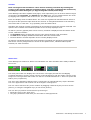
Swiss Manager has three separate view pages, each representing one of its three distinct ranges
of functions: the Programs, the System and the Files view. You can switch between the views
by tapping their respective tab on the screen, or by the left/right arrow keys.
Each view displays a list of related items. The views are organized as hierarchical lists. Items in
the top-level list represent topics that can be entered. To navigate downwards in the hierarchy,
select and click on a list item. To go upwards, press the Back button.
Operating the program consists of selecting an item and then issuing the desired command. The
Options menu contains all commands specific to the currently displayed view.
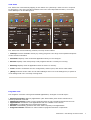
On S60 5.x phones (typically with a touch-screen) a toolbar is displayed near the bottom of the
screen, with three buttons:
• The Function button provides fast access to the most frequently used commands.
• The Info button displays additional information about the selected item.
• The third button's function depends on the currently displayed view.
On phones operated by buttons the most important commands are assigned to keypresses for
fast access. The key assignments are shown in the Options menu, indicated within square
brackets, for each command.
Status icon
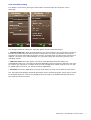
Swiss Manager Pro features a Status icon that floats over other windows and is always visible on
the screen.
The lower part of the icon displays the current time. The upper part has two overlapping
horizontal indicators: memory usage is shown in the background, and CPU usage is shown in the
foreground. The right hand side of the icon has two vertical indicators for C: drive free space and
battery level, respectively.
The color of the indicators changes when a critical value is reached that may require attention.
The icon's appearance and contents can be changed in Settings/Icon.
The icon can be moved to any screen location by dragging it with the stylus (on touch-screen
phones), or using the navigation keys (on non-touch phones).
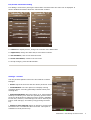
The icon lets you perform various actions by touching it:
• Short tap: bring up the Task menu.
• Long tap: perform an action that you can select in Settings/General.
CellPhoneSoft – Swiss Manager Pro Documentation
2