1
M580.book Page 132 Monday, April 18, 2011 11:18 AM
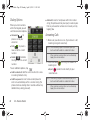
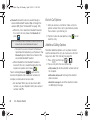
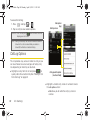
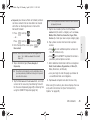
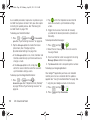
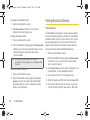
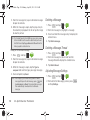
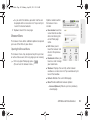
3. Tap the To: field and enter the recipient’s phone
number or email information. As you enter the
phone number or email address, matching
contacts appear onscreen.
䡲 Tap an available matching recipient or continue
entering the phone number or email address.
4. Touch the Type to compose field and enter your
䡲
your message. See “Recording Videos” on
page 118.
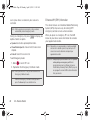
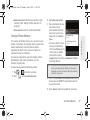
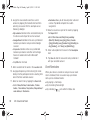
䡲 Audio: Opens the Select audio menu. Use the
onscreen navigation to select an audio file and
tap OK.
message.
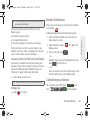
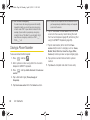
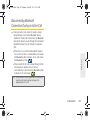
5. Press
Capture video: Opens the camcorder application.
Shoot a video, then tap OK to use this video in
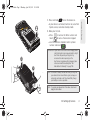
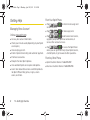
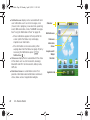
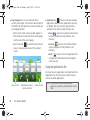
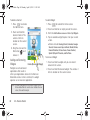
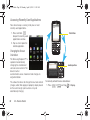
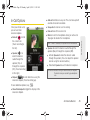
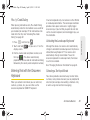
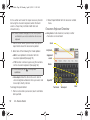
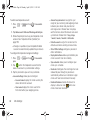
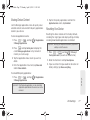
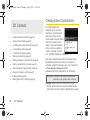
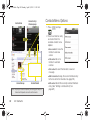
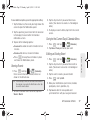
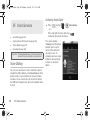
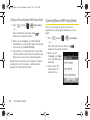
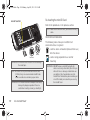
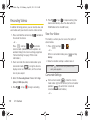
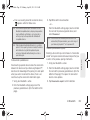
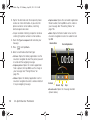
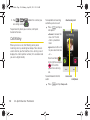
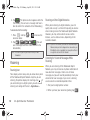
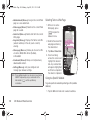
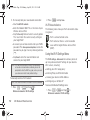
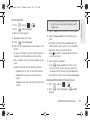
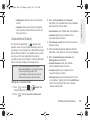
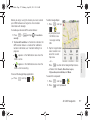
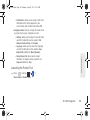
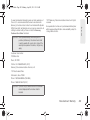
Volume Meter
Recording duration
and tap Attach.
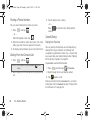
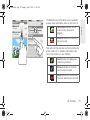
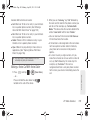
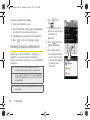
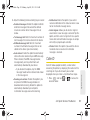
6. Select a multimedia attachment type:
䡲
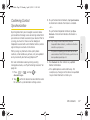
Pictures: Opens the Gallery application. Use the
onscreen navigation to select the picture you wish
to send with the outgoing message.
䡲 Capture picture: Opens the camera application.
Take a picture, then tap OK to use this image in
your message. See “Taking Pictures” on
page 114.
䡲 Videos: Opens the Gallery application. Use the
onscreen navigation to select a video and attach
it to your outgoing message.
Controls
䡲
Record Play
Record audio: Opens the message recorder
(shown above).
132
3A. Sprint Service: The Basics
Stop