1
CME Account Manager®
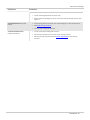
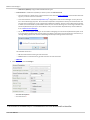
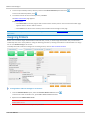
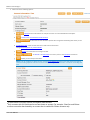
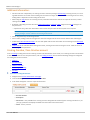
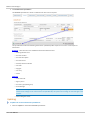
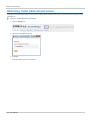
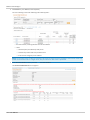
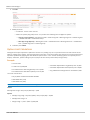
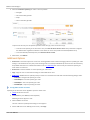
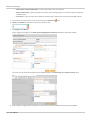
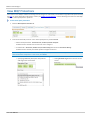
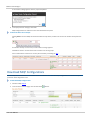
3. To remove permissible products, click the product in the Selected Products pane then click
To remove all selected products, click
.
.
4. To continue with the account creation process, click Next.
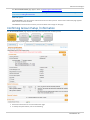
The Broker Permissions page appears.
Additional options:
l
l
Click Save & Exit to save the progress and exit the account creation process. The Account Confirmation page
appears. Refer to View or Edit an Account.
Click Cancel to exit the account creation process and discard the changes on this page.
NOTE: New accounts appear in the account list as Pending until activated. Refer to Set Account Limits for account activation
information.
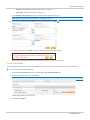
Assigning Brokers
Broker firms can submit single and dual-sided trades and claim, cancel, or decline single-sided trades. They can also have a
relationship with one or more platforms. Using the following procedures, Clearing and Trader firm administrators can assign
one or more Broker Firm(s) to an account.
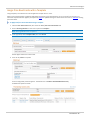
To modify the brokers and asset managers of an existing account, refer to View or Edit an Account.
To assign brokers and asset managers to an Account:
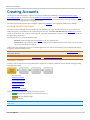
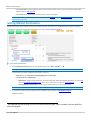
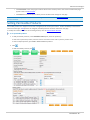
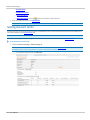
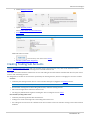
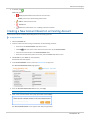
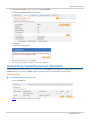
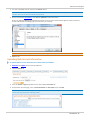
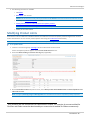
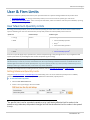
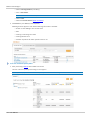
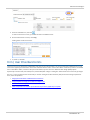
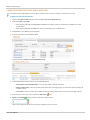
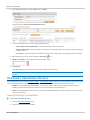
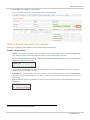
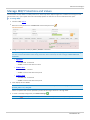
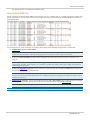
1. From the Available Brokers pane, select the ClearPort Broker Firms then click
.
To select more than one Broker Firm, press CTRL + select additional brokers.
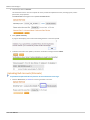
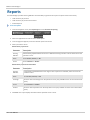
2. Repeat to select Globex Broker Firms.
WARNING: Brokers can access and enter Globex orders on CME Direct, therefore, exercise caution when adding
Globex Broker Firms.
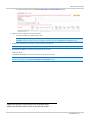
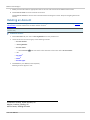
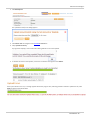
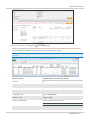
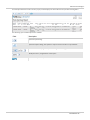
3. To continue the account creation process, click Next.
- 19 - User Manual