1
2
TENGRAPH® Online Quick Reference Manual
The quick reference manual
explains the basic features
of the TENGRAPH®
Online system. Detailed
TENGRAPH® Online help
for all features is available
from the Department’s
Home Page or from within
the TENGRAPH application.
2. USING THE TENGRAPH®
ONLINE HELP SYSTEM
Detailed TENGRAPH® on line help
is available in the user manual from
http://www.dmp.wa.gov.au/tgol_help/
or by clicking the Help buttons in the
TENGRAPH dialogues. The on line
help manual consists of a searchable
index that displays text like a manual
containing hot spots to other topics.
3. LOADING A TENGRAPH®
ONLINE DIGITAL MAP
To use TENGRAPH® on the Internet
you must register on-line to obtain a
user id and password. You must also
download Citrix software from www.
dmp.wa.gov.au/3980.aspx onto your
computer to enable TENGRAPH®
to work. The TENGRAPH® Online
system is accessed by selecting
the Online Systems option from the
Department’s home page www.dmp.
wa.gov.au.
1. THE TENGRAPH® ONLINE
SCREEN EXPLAINED
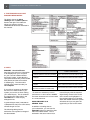
The following figure shows the various
parts of the TENGRAPH® Public Plan
(ground available) screen.
Obtaining graphical information from
TENGRAPH® is called an ENQUIRY.
To make an ENQUIRY by:
i) Tenement Number
• Click left mouse button on Enquiry
on the Menu Bar.
• Select the Tenement Option from
the resulting drop down menu.
• Enter the required tenement
number in the appropriate area. eg
M51/256
• Click Apply (Hint- the Enter Key on
the keyboard can be used in lieu of
clicking Apply).
ii) Map sheet
• Click on Enquiry on the Menu Bar.
• Select the Map Sheet Option from
the resulting drop down menu.
• Enter your required map sheet
name in the space provided (Hintthe name can be shortened- For
example MENZ for Menzies).
Press Apply.
• Select your required map sheet
from the resulting list by positioning
the mouse pointer over its name in
the list and clicking the left mouse
button.
• Click Apply.
iii) Gazetteer / Place Name,
Minesite, Tenement Holder
or Reserve
• Do all steps as in “ii” above
substituting the appropriate feature
for the map sheet.
For other ENQUIRY options please
consult the TENGRAPH® Online
Help system.
Granted mining tenements loaded
on the default screen are shown
as green. The blue areas represent
(pending) tenement applications that
have not yet been determined.
4. MOVING AROUND TENGRAPH®
ONLINE
Options or functions of TENGRAPH®
are generally selected by moving
the pointer over a menu heading
and clicking the left mouse button.
The mouse is also used to highlight
graphical features and objects
displayed on the TENGRAPH®
screen. Textual information
describing highlighted features is
available whenever the “i…” button
becomes active.
“i…” button tenement information dialogue.