1
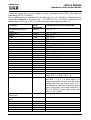
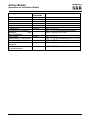
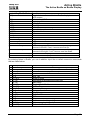
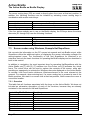
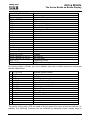
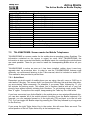
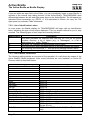
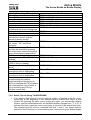
Active Braille HandyTech Operation of the Active Braille ElektronikGmbH therefore delete the clipboard only if you are sure that you will no longer require its contents. Again, only files that are not currently open can be deleted. When you are attempting to open an editable file with [SPC+1 3 5] (Chord o) or via the menu item 'Edit' from the file list, the Editor will check whether enough memory is available for editing the file. Should this not be the case, the file will be opened in read only mode, and a message will be issued. As long as there is enough memory left for managing the appropriate pages, a file can always be opened in read only mode, because no swap file needs to be created to keep track of changes. 2. Block operations may cause a slowdown of the Editor when working with large amounts of data. This means that you may have to wait a little until a block has been either, copied, cut, or pasted, if you are working with very large amounts of text. Navigation within the Editor may slow down in the case of very long lines. 5.3 Controlling the PC from the Active Braille's Keyboard [SPC+1 2 7] (Chord B) It is possible to use the Active Braille's keyboard for inputs to the PC by utilizing the screen reader. Therefore it is necessary to install the latest Handy Tech Braille display driver for your screen reader, which you can find on the enclosed CD. You can also activate and deactivate PC control specifically. This is necessary because the Active Braille's function keys must be available both as input device for the PC and for initiating screen reader functions. The following functionalities are available to you: Turning PC control on and off Input of characters Use of the control key (Ctrl), including for keyboard shortcuts: One example is the copy function, which is implemented on a standard keyboard as a keyboard shortcut consisting of Ctrl+C Use of the ALT key, including for keyboard shortcuts: One example is activating the menu bar under Windows programs, or initiating hotkeys Initiating the "Windows" and "Context" keys Initiating the Enter key Initiating the Escape key Initiating the Backspace key Initiating the Delete key Moving the cursor Initiating the Pos1 and End keys Initiating the Page Up and Page Down keys Initiating the Shift key: One example is entering CTRL+Shift+f Caps lock, for example in order to select blocks Initiating the function keys, including in combination with CTRL, Shift, and ALT. This means it is possible, for example, to close certain windows or entire applications via function keys. 5.3.1 Table of Key Commands for Controlling the PC The key combinations for controlling the PC are listed below in the form of a table. We have included as many combinations as possible; however, if a combination is not shown, Page 69