1
1. Installation of ESET Mobile
Security
To install ESET Mobile Security for Android, your mobile
device must meet following system requirements:
Minimum system requirements
Operating system Android 2.0/2.1 (Éclair) and
later
CPU
600 MHz
RAM
256 MB
Internal storage
free space
5 MB
NOTE: Some features (e.g. Antispam and Anti-Theft)
are not available on Android 3.0 / tablets which do not
support calling and messaging. More details you can
find in this knowledgebase article (may not be available
in your language).
1.1 Installation
To install ESET Mobile Security, do one of the following:
search for ESET Mobile Security (or just Eset) in the
Google Play Store application on your Android device.
ESET Mobile Security is listed under Applications >
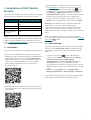
Tools. Alternatively, you can install the program by
scanning the QR code below using your mobile
device and an application such as QR Droid or
Barcode Scanner:
download the ems.apk file on your computer from
the ESET website. Copy the file to your device via
Bluetooth or USB. Tap the Launcher icon
on the
Android home screen (or go to Home > Menu) and
tap Settings > Applications and make sure the
Unknown sources option is selected. Locate the ems.
apk file using an application such as ASTRO File
Manager or ES File Explorer. Open the file and tap
Install. Once the application is installed, tap Open.
Warning: ESET Mobile Security must be installed on
internal device storage. Some mobile phones
mistakenly allow users to install applications on SD
card. If you install ESET Mobile Security on SD card,
Real-time protection, Antispam and Anti-Theft will not
work.
After successful installation, activate ESET Mobile
Security by following the steps described in the Product
activation 4 section.
1.2 Uninstallation
If you wish to uninstall ESET Mobile Security from your
device, use the Uninstall wizard accessible from the
ESET Mobile Security main screen or follow the steps
below:
1. Tap the Launcher icon
on the Android home
screen (or go to Home > Menu) and tap Settings >
Location and security > Select device
administrators, deselect ESET Security and tap
Deactivate. Enter your ESET Mobile Security
password when requested. (If you have not set ESET
Mobile Security as the Device administrator, skip this
step.)
2. Go back to the Settings and tap Applications >
Manage applications > ESET Security > Uninstall.
ESET Mobile Security and the quarantine folder will be
permanently removed from your mobile device.
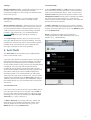
download the ESET Mobile Security installation file (
ems.apk) from the ESET website by scanning the QR
code below:
3