1
Pro_Flight_instrument_panel_resize.qxd
12/03/2009
12:36
Page 4
The Pro Flight Instrument Panel will not register automatically if you have installed
the Pro Flight Instrument Panel before installing FS X. To register the Pro Flight
Instrument Panel with FS X, click on the “Launch the Flightsim X plugin manually”
icon to re-run the program.
Definitions
Server = The PC that will be running FSX and the
main Flight controllers attached.
LAN
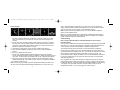
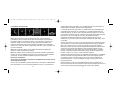
You can select one of the above six screens to be displayed on the Flight Instrument
Panel. Press the cursor up or down buttons at the bottom centre of the panel to scroll
through the screen displays.
Client = The PC that will be linked to the Server via
the LAN. The instrument panels will be connected to
this PC to alleviate the processing stress of having
multiple screens connected to one PC.
Additional buttons
On the Server PC
The six buttons on the left of the Instrument Panel open additional cockpit screens or
displays when flying in FSX. Each button is labelled with the corresponding display to
the right of it. The Map, Main Panel, Radios and GPS buttons will open those
screens or cockpit panels when flying most aircraft. The panel 4 and 5 buttons will
open different screens or panels depending on the aircraft being flown. Press the
button once to open the panel or screen and again to close it (except map where you
must click on OK or press return to close the map screen).
1. Ensure FSX and the FIP drivers are installed and running.
Note: Pressing any of the six buttons when FSX is not loaded will switch the
panel display off and on.
You can connect multiple Instrument Panels to your PC to show different cockpit
displays simultaneously. Each panel uses system resources - see Advanced options
below to connect multiple panels with maximum system performance.
Advanced options
Server
2. Original retail DVD1: FSX Deluxe edition; Navigate to the SDK folder and run
Setup.exe.
3. Show hidden files.
In Windows Explorer (if running Vista press Alt key) navigate to Tools > Folder
Options. Select View tab. In Advance Settings > Hidden Files and Folders section,
Select Show Hidden Files and Folders.
4. Locate SimConnect.xml
On Vista: C:\Users\username\AppData\Roaming\Microsoft\FSX\
On XP: C:\Documents and Settings\Application Data\Microsoft\FSX\
Add section within the section <SimBase.Document...>
<SimConnect.Comm>
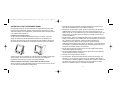
If you have more than one PC connected to a LAN you can connect multiple
instrument panels to a secondary PC which will display flight information from
Microsoft FSX running on your primary PC. This can be useful to free up system
resources for FSX.
4
Client
<Disabled>False</Disabled>
<Protocol>IPv4</Protocol>
<Scope>global</Scope>
5