1
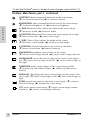
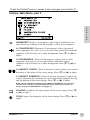
To exit the OnView® menu or screen & save changes, press button [1].
OnView Main Menu, part 1, continued
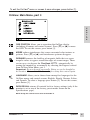
CONTRAST adjusts foreground white level of the screen image.
[▼] to decrease contrast or [▲] to increase contrast.
BRIGHTNESS adjusts background black level of the screen image.
[▼] to decrease brightness or [▲] to increase brightness.
H. SIZE (Horizontal Size) adjusts the width of the screen image.
E
N
G
L
I
S
H
[▼] decreases width, [▲] increases width.
H. POSITION (Horizontal Size) moves the screen image left or right.
[▼] moves screen left, [▲] moves screen right.
V. SIZE (Vertical Size) adjusts the height of the screen.
[▼] decreases screen height, [▲] increases screen height.
V. POSITION (Vertical Size) moves the screen up and down.
[▼] moves screen down, [▲] moves screen up.
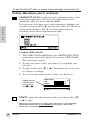
PINCUSHION straightens vertical sides of the screen.
[▼] curves vertical edges inward, [▲] curves vertical edges outward.
PIN BALANCE curves the vertical edges of the screen to the right or
left. [▼] curves vertical edges to the left, [▲] curves vertical edges to
the right.
TRAPEZOID makes vertical edges of the screen image parallel.
[▼] narrows top and widens bottom, [▲] widens top and narrows
bottom.
PARALLEL (Parallelogram) slants vertical edges of the screen to the
left or right. [▼] slants vertical edges to left, [▲] slants vertical edges to
right.
ZOOM expands and contracts the entire screen image. [▼] contracts
the screen image. [▲] expands the screen image.
TILT rotates entire screen image. [▼] rotates screen image counter-
clockwise, [▲] rotates screen image clockwise.
8
Operation
ViewSonic PF775