1
0DFLQWRVK
3ULQWLQJ
6RIWZDUH
,QVWDOOLQJWKH40633'
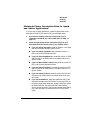
Although the QMS 2425/2425 TURBO supports LaserWriter 6, 7, and
8, we recommend using LaserWriter 8. The QMS 2425 PPD (a printer
description file) is provided with your printer so you can take advantage of special features.
1
If you haven't already, follow the instructions given above in
“Installing the PS Executive Series Utilities,” on page 5-3.
2
Create a Printer Descriptions folder:
System 7 users—Create a folder called Printer Descriptions
inside the Extensions folder inside the System Folder.
System 6 users—Create a folder called Printer Descriptions
inside the System Folder.
3
Open the PPDs folder inside the Drivers folder in the PSExec
3.xx Folder.
4
Open the Ver 4.1 folder inside the PPDs folder.
5
Select the QMS 2425 printer description file in the Ver 4.1
folder and drag it to the Printer Descriptions folder you created in step 4.
6
From the Apple menu, choose Chooser.
7
In the Chooser window, select the LaserWriter 8.x icon and
select the QMS 2425.
8
Choose the Setup button.
This causes the LaserWriter to query the printer and automatically choose the appropriate PPD.
9
Exit the Chooser.
Now, when you go into your application, you can access QMS
printing options by choosing Options in your application's Print
dialog box.
406785%23ULQW6\VWHP*HWWLQJ6WDUWHG